7.8 C
New York
Saturday, March 28, 2026
Home Blog Page 6

Beats Studio3 Wireless Noise Cancelling Headphones Review

1
Beats Studio3 headphones review highlighting sound quality

Introduction

The Beats Studio3 Wireless represent a notable entry in the over-ear headphone market, marketed toward consumers who prioritize style, portability, and brand recognition alongside sound performance. With features such as the Apple W1 headphone chip, Class 1 Bluetooth, active noise cancellation (Pure Adaptive Noise Cancelling — Pure ANC), up to 22 hours of battery life, and an integrated microphone, the Studio3 aim to balance everyday usability with a lifestyle-oriented audio signature. This review examines the design, build quality, audio performance,

noise cancelling effectiveness, wireless connectivity, battery and charging, microphone and call quality, comfort and fit, compatibility, and value proposition. The goal is to provide a comprehensive informational assessment to help potential buyers determine if the Beats Studio3 in white suit their needs.

Product Overview and Key Specifications

  • Product: Beats Studio3 Wireless Noise Cancelling Over-Ear Headphones
  • Color: White (also available in other finishes)
  • Chip: Apple W1 headphone chip
  • Bluetooth: Class 1 Bluetooth wireless technology
  • Noise cancellation: Pure Adaptive Noise Cancelling (Pure ANC)
  • Battery life: Up to 22 hours with Pure ANC on; potentially longer with ANC off
  • Charging: Fast Fuel (minutes of charging provide hours of playback)
  • Controls: On-ear buttons/controls for playback and calls
  • Microphone: Built-in dual microphone system for calls and voice interaction
  • Audio cable: Included wired option for passive listening when battery is depleted
  • Foldable: Collapsible design for portability
  • Weight: Moderate — designed for portable over-ear usage

Design and Build Quality
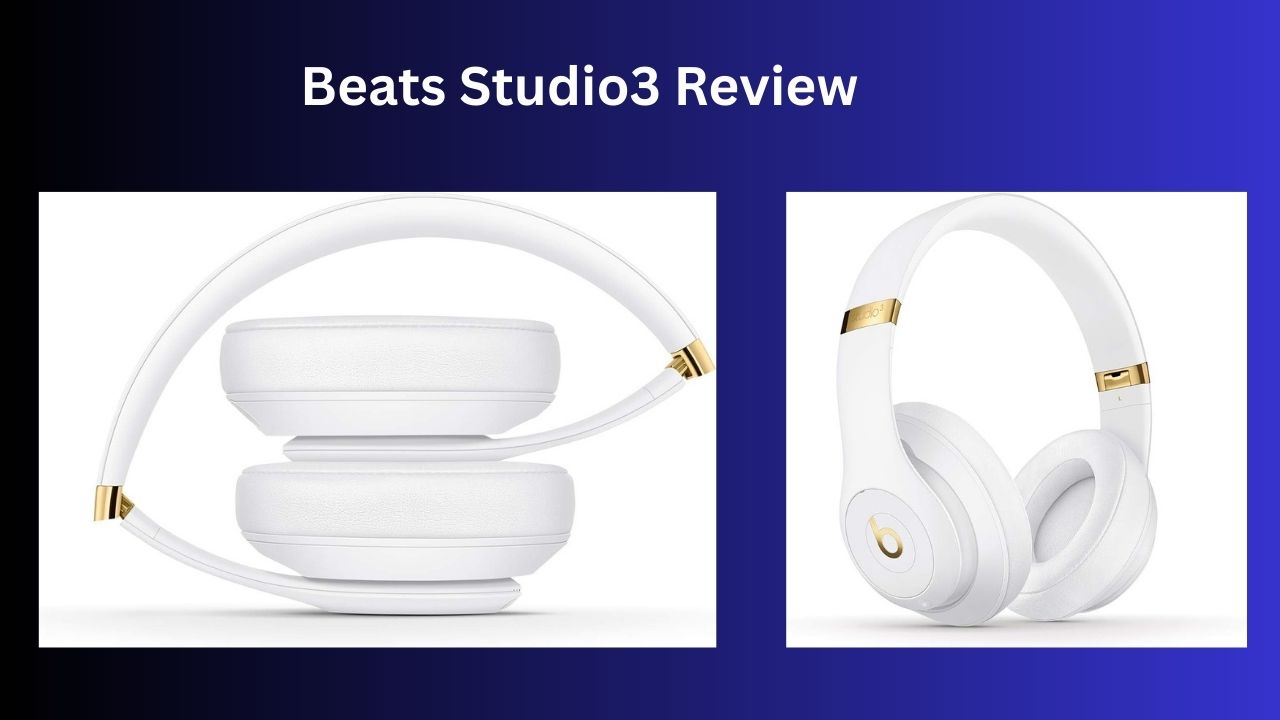
This Beats Studio3 review covers design, sound quality, comfort, and noise-cancellation features. Discover whether the Beats Studio3 wireless headphones are worth it for music lovers, gamers, and everyday users.

Aesthetic and Materials

The Beats Studio3 Wireless carry Beats’ signature sleek, fashion-forward aesthetic. The white finish provides a clean, minimalist look that appeals to users seeking a modern and conspicuous accessory. The exterior is typically composed of glossy and matte plastics with metal reinforcement in the headband and hinges. Ear cups feature the iconic Beats “b” logo, subtly integrated into the design.

Construction and Durability

Beats targets durability for daily wear: the headband often has stainless steel arms and a flexible hinge mechanism that allows the ear cups to fold inward for compact storage. However, the construction emphasizes lightweight portability more than heavy-duty ruggedness; the use of plastic components can lead to concerns for users who expect military-level robustness. Overall, for typical daily commuting, office use, and travel, the build is adequate and generally reliable if handled with reasonable care.

Comfort and Fit

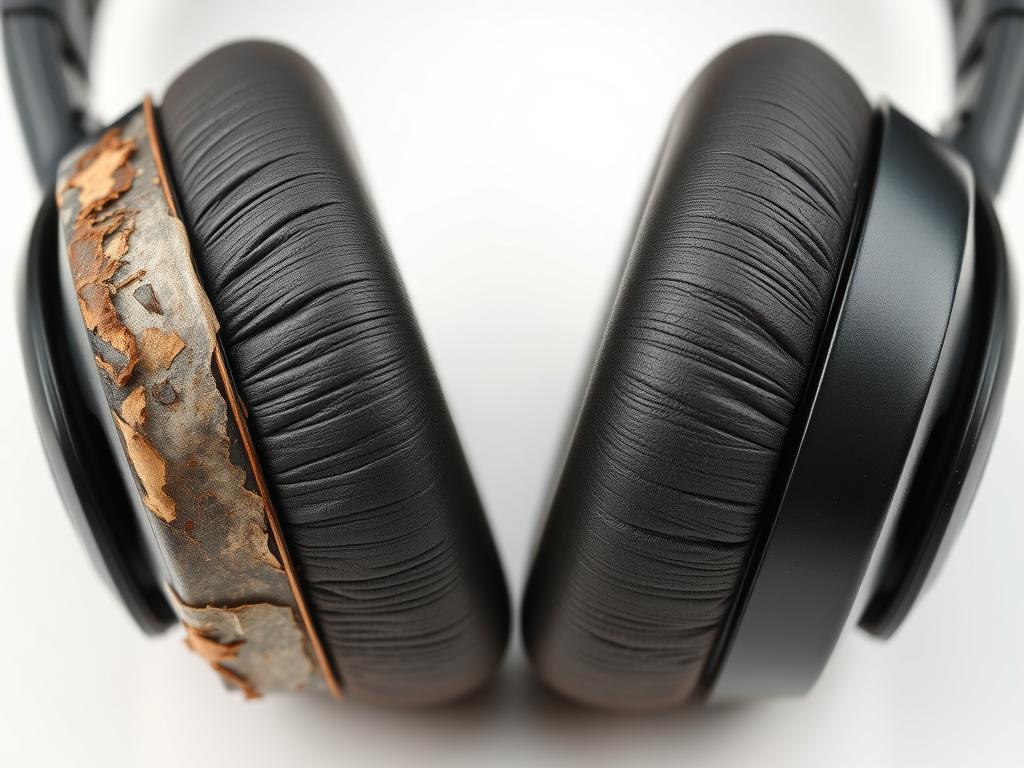
The Studio3 are engineered for long listening sessions, with memory-foam ear cushions and a padded headband. The over-ear design aims to surround the ears fully, providing passive isolation along with the active noise cancellation. Comfort is subjective but commonly reported as comfortable for several hours; however, the clamping force is moderate and some users with larger heads may experience pressure after prolonged use. The ear pads are replaceable through third-party services if wear occurs.

Audio Performance


Sound Signature

Beats headphones historically favor a bass-forward sound signature, and the Studio3 continue that trend. The tuning emphasizes punchy, pronounced low frequencies — appealing to fans of hip-hop, EDM, pop, and genres that benefit from strong bass presence. Mids and highs are generally clear but can be slightly recessed in comparison to the bass, which may obscure some midrange detail in complex mixes. Treble response is typically smooth but not overly extended, reducing listener fatigue but sometimes lacking the airiness or sparkle audiophiles prefer.

Clarity, Detail, and Imaging

For casual listening and mainstream music, the Studio3 deliver satisfying clarity and an engaging presentation. Imaging is competent for on-the-go headphones, but not at the level of high-end audiophile planar or dynamic designs. The emphasis is on an immersive, energetic experience rather than analytical neutrality. Listeners who prioritize accuracy, studio monitoring, or classical/acoustic transparency may find the Studio3 less suitable compared to neutral headphones.

Wired vs Wireless Performance

When used wirelessly through Bluetooth, codec limitations (primarily AAC and SBC depending on the source device) can influence perceived audio quality. iOS devices pairing with the W1 chip tend to achieve efficient Bluetooth implementation and stable performance. Wired use via the included cable provides a passive listening option if the battery dies but does not bypass internal tuning that favors Beats’ sound profile. Audiophiles seeking lossless, high-resolution performance will find these not intended for that niche.

Noise Cancellation (Pure ANC)

Technology and Functionality

Beats markets Pure Adaptive Noise Cancelling (Pure ANC) as technology that continuously monitors and adjusts sound to block external noise. The system leverages internal microphones and adaptive software to attenuate low-frequency ambient noises (e.g., airplane engines, subway rumble, HVAC noise) and to react to changing environmental conditions.

Effectiveness

In real-world usage, the Studio3’s ANC is competent for everyday situations. It effectively reduces consistent, low-frequency noise and improves perceived clarity at lower volumes. However, it may be less effective than higher-tier ANC systems from competitors (e.g., Sony’s WH-series, Bose QC-series) in terms of overall noise attenuation, especially in mid-to-high frequency ranges and sudden transient sounds (e.g., voice announcements). Pure ANC also aims to balance audio output and battery life; consequently, while it noticeably improves isolation, it may not create the near-silent listening environment that premium ANC implementations achieve.

ANC Impact on Sound

Because Pure ANC interacts with the overall output, listeners may perceive slight tonal shifts when ANC is enabled — occasionally a marginal tightening or change in bass perception. This is typical for adaptive ANC systems and varies by track and listening level.

Wireless Connectivity and the Apple W1 Chip

Apple W1 Chip Benefits

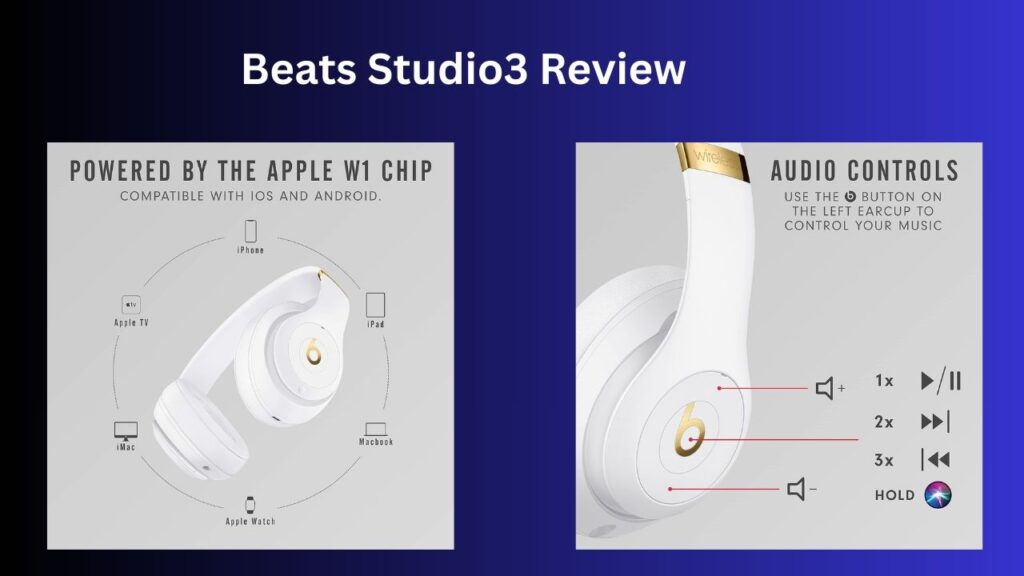
The inclusion of the Apple W1 headphone chip provides seamless pairing with Apple ecosystem devices, simplified Bluetooth connections, and efficient power management. Key benefits include:

  • Quick pairing and smoother switching among Apple devices signed into the same iCloud account.
  • Improved connection reliability and lower latency compared to some generic Bluetooth implementations.
  • Enhanced battery life efficiency due to optimized wireless power consumption.

Class 1 Bluetooth

Class 1 Bluetooth provides extended range and stronger signal compared to lower-class implementations. Practically, this translates to more reliable connectivity in crowded wireless environments and the ability to maintain audio connection over greater distances (subject to environment and obstacles).

Read more… about headphones

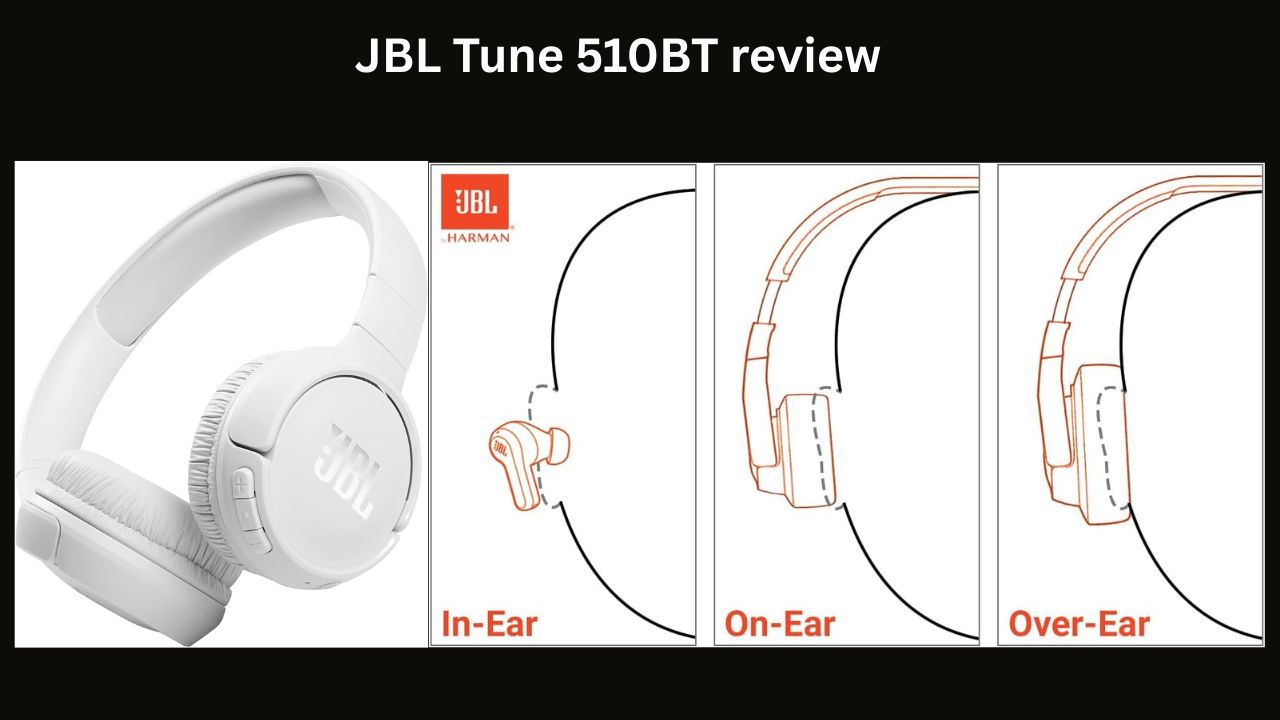
JBL Tune 510BT

Sony WH-CH720N

The Best Wireless Headphones for 2025

Compatibility

While W1 delivers special ease-of-use for iOS/macOS users, the Studio3 remain compatible with Android and other Bluetooth-enabled devices. Android users will pair using standard Bluetooth settings and retain most features (ANC, playback, and controls) but may not experience the same effortless device switching or pop-up pairing interface as Apple users.

Battery Life and Charging

Runtime

Beats advertises up to 22 hours of listening time with Pure ANC activated. This makes the Studio3 suitable for daily commuting, long flights, and extended listening sessions without frequent recharging. With ANC disabled, actual battery life can extend beyond 22 hours, depending on volume and usage patterns.

Fast Fuel Charging

The Fast Fuel feature provides several hours of playback from a short charge (often around 10 minutes of charging for about 3 hours of playback, though exact figures may vary). This is useful for last-minute charging needs before travel.

Real-World Considerations

Battery performance degrades mildly over years of use, so long-term battery health depends on charging habits and cycle counts. The Studio3 utilize a built-in, non-user-replaceable battery, so eventual replacement requires service support or professional repair.

Controls and Built-in Microphone

On-Headphone Controls

The Studio3 include tactile buttons for power, volume control, playback, and call handling. Controls are straightforward and intuitive for most users, though tactile feedback can take time to learn if switching from touch-sensitive interfaces on other models.

Microphone and Call Quality

Dual built-in microphones support voice calls and virtual assistant interactions. Call quality is acceptable for most indoor and quiet outdoor situations. Wind and noisy environments can challenge the microphone’s ability to isolate voice from background noise, producing variable clarity on the receiving end of calls. For frequent outdoor calling in windy or highly noisy environments, a headset with specialized noise-rejecting mic arrays may offer better performance.

Portability and Accessories

Foldable Design and Carrying Case

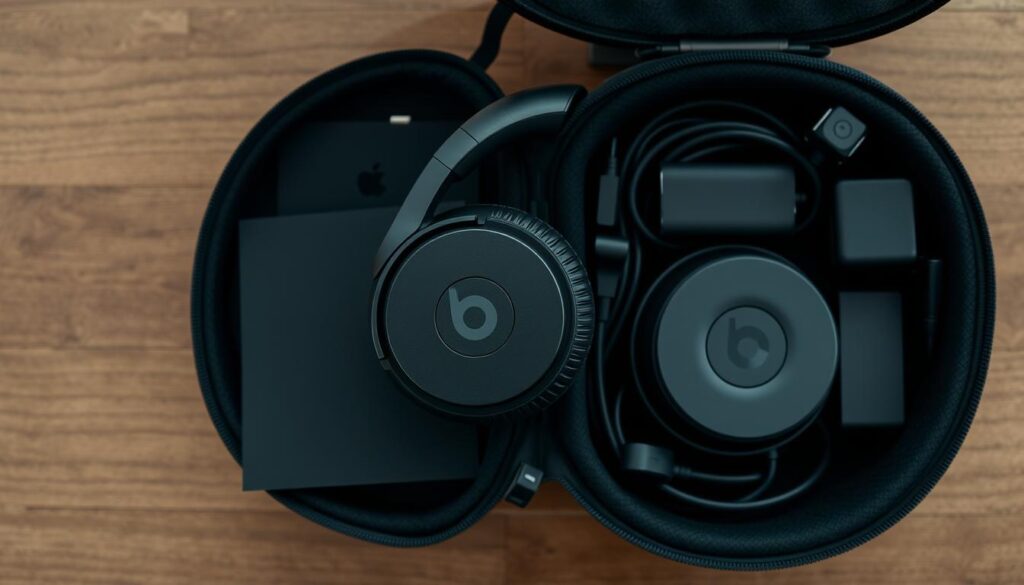
The collapsible design allows ear cups to fold inward, reducing size for storage in a carrying case. Beats typically include a soft carrying pouch or case depending on the retail package and variant. The white color is prone to showing dirt and scuffs more easily than darker finishes, so periodic cleaning may be necessary to maintain appearance.

Accessories

Standard accessories include a charging cable (USB), a 3.5 mm audio cable for wired use, user manuals, and sometimes a carrying pouch. The package contents vary by retailer and bundle.

Software and App Integration

Beats has historically offered app support for firmware updates and feature customization. Firmware updates can improve performance, connectivity, and ANC behavior. Integration with iOS devices provides streamlined controls and battery level indicators via the device’s interface. Android users may rely on third-party apps or limited manufacturer tools for updates and information.

Comparisons and Market Position

Against Competitors

  • Sony WH-1000XM Series: Sony’s flagship models typically outperform the Studio3 in ANC effectiveness, soundstage, and customizable EQ via companion apps. They also often provide longer battery life and advanced features such as adaptive sound control and multipoint pairing.
  • Bose QuietComfort Series: Bose historically leads in consistent, comfortable ANC and neutral sound suitable for frequent travelers. The Studio3 compete on style and bass-forward signature but may fall short on ANC finesse.
  • Sennheiser/AKG: These brands usually focus on audio fidelity and detail, offering more balanced/natural sound signatures that appeal to audiophiles and studio users. Beats aims for a consumer-friendly, bass-centric profile.

Target Audience

The Studio3 are tailored to listeners who value style, brand recognition, simple pairing (especially within the Apple ecosystem), and a punchy, bass-focused sound for casual and travel listening. They are less tailored to audio purists seeking neutral, clinical accuracy or frequent users prioritizing the absolute best noise cancellation.

Pros and Cons

Pros

  • Stylish design: Contemporary look with recognizable Beats branding.
  • Apple W1 chip: Seamless pairing and improved connectivity with Apple devices.
  • Energetic sound signature: Strong bass and engaging presentation for popular music genres.
  • Good battery life: Up to 22 hours with ANC on; Fast Fuel charging adds convenience.
  • Comfortable for many: Memory-foam ear cushions and padded headband suitable for extended listening.
  • Foldable and portable: Collapsible design and included accessories aid travel.

Cons

  • Tonal bias: Bass-forward tuning may not suit listeners seeking neutrality.
  • ANC not class-leading: Effective but generally not as powerful as top competitors.
  • Build materials: Plastic elements can feel less premium; white finish susceptible to scuffs.
  • Non-replaceable battery: Limits long-term serviceability for power-related degradation.
  • Microphone limitations: Call quality can suffer in very noisy or windy conditions.

Practical Use Cases

  • Commuters: The Studio3’s ANC and battery life are useful for daily commutes, though not the absolute best in class for noise cancellation.
  • Travelers: Comfortable fit and foldability make them suitable for air travel; ANC reduces engine noise, and the battery life supports long-haul flights.
  • Casual listeners: Excellent for mainstream music consumption (hip-hop, EDM, pop) where bass impact is appreciated.
  • Apple ecosystem users: Seamless pairing and device switching with iPhones, iPads, and Macs.
  • Office use: Suitable for music while working, but in-office calls may reveal microphone limitations in noisy environments.

Maintenance and Care

  • Cleaning: Use a soft, slightly damp cloth for the exterior; avoid harsh chemicals. White finishes may require more frequent cleaning.
  • Storage: Use the provided pouch or case to minimize scratches and dust accumulation.
  • Battery care: Avoid prolonged exposure to extreme temperatures and deep discharges to preserve battery health over time.

Final Assessment and Recommendation

The Beats Studio3 Wireless in white present a compelling package for consumers who want stylish, comfortable over-ear headphones with a punchy, bass-forward sound, Apple-friendly connectivity, and reliable battery life. They excel in lifestyle and casual listening contexts, offering a strong brand appeal and user-friendly features.

However, prospective buyers should weigh priorities: if the highest-performing active noise cancellation, the most neutral sound signature, or professional-grade audio fidelity are primary concerns, competitors like Sony’s WH-1000XM series, Bose QuietComfort line, or premium Sennheiser models may better satisfy those needs. For users deeply embedded in the Apple ecosystem and who appreciate Beats’ sound signature and design language, the Studio3 are an attractive, practical choice.

  • Recommendation: Choose the Beats Studio3 Wireless if you value style, bass-forward sound, straightforward Apple device integration, and convenient battery life. Consider alternatives if you prioritize top-tier ANC, neutral audio accuracy, or the highest call clarity in noisy environments.

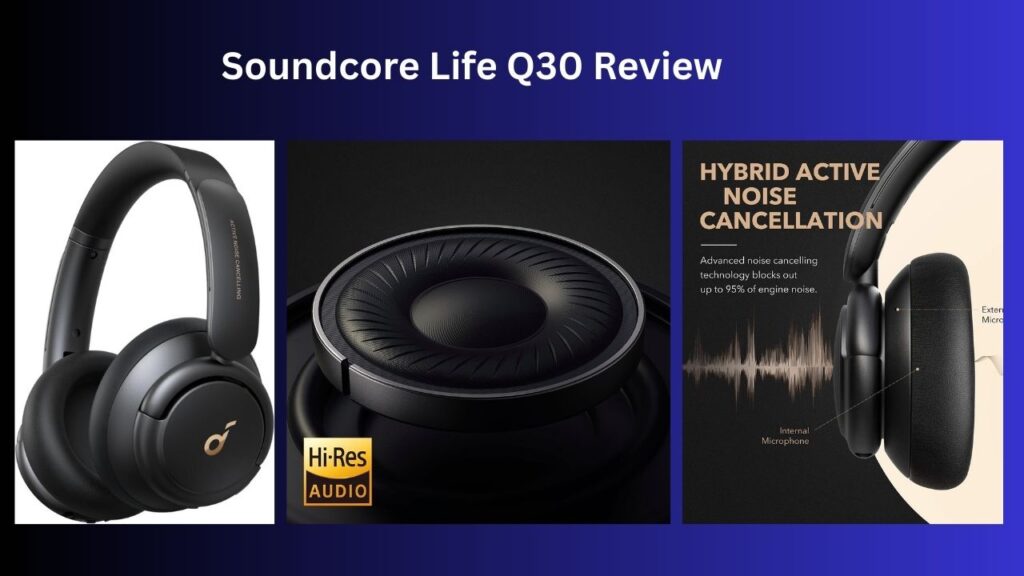
Soundcore Life Q30 Review: Affordable Hybrid ANC Headphones with 50-Hour Battery Life

0
Soundcore Life Q30 by Anker — over-ear hybrid ANC wireless headphones with foldable design and soft ear cushions.

The market for affordable, feature-rich headphones has exploded over the last few years. Among the many contenders, the soundcore Life Q30 by Anker stands out as a well-balanced option that blends effective noise cancellation, long battery life, comfort, and value. In this long-form post, we’ll examine the Life Q30 from every angle — design, comfort, sound quality, noise cancellation performance, battery life, app features, connectivity, use cases, and how they compare to competitors. By the end, you should have a clear idea whether these are the right headphones for you.


Table of contents

  • Overview and key specs
  • Design and build quality
  • Comfort and fit
  • Sound signature and performance
  • Active Noise Cancellation (ANC) and modes
  • Battery life and charging
  • Connectivity and multipoint use
  • App features and custom EQ
  • Practical use cases
  • Pros and cons summary
  • How the Life Q30 compares to alternatives
  • Final verdict and buying considerations

Overview and key specs

The soundcore Life Q30 is a pair of over-ear wireless headphones from Anker’s audio brand, soundcore. They target users who want strong value: good sound, effective hybrid active noise cancellation, extensive battery life, and customizable EQ via a companion app.

  • Driver size: 40 mm dynamic drivers
  • ANC type: Hybrid Active Noise Cancelling (feedforward + feedback mic system)
  • Sound certification: Hi-Res compatible marketing (supports higher quality codec playback depending on source)
  • Battery life: Up to 50 hours with ANC off (varies by ANC mode/use)
  • Charging: USB-C
  • Connectivity: Bluetooth (versions vary by production run), supports multipoint connection
  • Controls: On-ear physical buttons for playback, call management, and ANC toggle
  • App: soundcore app for iOS/Android with custom EQ and presets
  • Weight: Lightweight foldable design for travel and storage
  • Included: Carry pouch, audio cable for wired use, charging cable

Design and build quality

  • Aesthetics: The Life Q30 follows a subdued, utilitarian aesthetic. They’re typically available in black and navy colorways. The matte plastic finish gives them a clean look suited for commuting, office environments, and travel.
  • Materials: Mostly plastic with metal hinges in the headband for durability. Cushioning is covered in soft faux leather.
  • Hinges and folding: The cups swivel and fold inward for compact storage. This foldability, plus the included carrying pouch, makes them convenient for travel.
  • Controls: Physical buttons sit on the earcup — typically a multi-function button and volume/playback buttons. These are tactile and reliable, though some users prefer touch controls.
  • Build impression: While not “premium” like metal-bodied headphones, the Life Q30 feels solid and well-assembled for the price point. Expect some flex in the plastic, but not fragility.

Comfort and fit

  • Clamping force: Moderate — strong enough for secure fit but not overly tight. Good for commutes and general day-to-day wear.
  • Earpads and headband: Generous padding on both earcups and headband. The memory-foam-like padding provides a soft seal around the ears.
  • Long-term wear: Many users report comfortable multi-hour sessions; some with larger heads might find slight pressure after very long wears, but that is common at this price range.
  • Isolation: Passive isolation is decent due to closed-back cups and snug fit, improved further when ANC is enabled.

Overall, comfort is a strong suit for the Life Q30 — they’re designed for extended listening sessions.


Sound signature and performance

The soundcore Life Q30 aims to deliver a broadly appealing sound with the flexibility of customization via the app.

  • Signature: Generally V-shaped with boosted bass and slightly emphasized treble for clarity/sparkle. Mids are present but can feel slightly recessed in default “Balanced” or “BassUp” modes.
  • Bass: Strong and punchy. Good for pop, hip-hop, EDM, and casual listening. The bass boost isn’t muddy, but it’s pronounced enough to be noticeable.
  • Mids: Clear enough for vocals and podcasts, though some critical listeners may prefer a flatter response for vocals and acoustic instruments.
  • Treble: Adequate clarity and detail. Treble presence helps perceived detail but can be fatiguing if heavily boosted.
  • Soundstage & imaging: Typical for closed-back mobile headphones — intimate soundstage rather than wide, but imaging is competent for everyday listening.
  • Hi-Res and codecs: The headphones support high-quality playback when sources and codecs permit. Practical differences will depend on your streaming source and device; the soundcore app’s custom EQ provides the biggest perceived improvement for many users.
  • Latency: For gaming and video, latency is typical for Bluetooth headphones in this category. There may be a low-latency mode depending on firmware, but wired connection via the included cable eliminates latency concerns.

In short, the sound quality is pleasing for non-audiophile listeners, and the app-based EQ allows tailoring the sound to your tastes.


Read our in-depth Soundcore Life Q30 review — Anker’s affordable hybrid ANC headphones offering 50-hour battery life, customizable EQ, multipoint Bluetooth, and comfortable design. A top value pick for commuters, travelers, and everyday use.

Active Noise Cancellation (ANC) and modes

One of the Life Q30’s headline features is hybrid ANC with multiple modes tuned for different environments.

  • Hybrid ANC: Uses both feedforward and feedback microphones to cancel a broad range of frequencies. This design improves low- and mid-frequency cancellation relative to simple feedforward-only systems.
  • Modes:
    • Transport/Travel mode: Maximizes low-frequency cancellation for airplane engine and train rumble.
    • Indoor mode: Tuned for mid/high-frequency noises in offices, cafes, and home environments.
    • Outdoor mode: Balances ANC and awareness to avoid completely cutting out important ambient sounds like traffic.
  • Transparency/Awareness: The Life Q30 offers an “Aware Mode” (sometimes called transparency) that uses the mics to feed environmental sound into the cups, useful for announcements or short conversations without removing the headphones.
  • Performance: For the price, ANC performance is impressive — significant reduction of drone and low-frequency noise. It won’t rival flagship models (e.g., Sony WH-1000XM5 or Bose 700) in finesse or adaptive intelligence, but it provides meaningful isolation for commuting and noisy offices.
  • Wind handling and artifacts: As with many ANC headphones, aggressive ANC modes may introduce slight digital artifacts in the sound or hiss in very quiet environments. Wind can affect mic performance outdoors, though Outdoor mode helps mitigate excessive isolation.

Overall, ANC is a compelling feature here and one of the main reasons many users choose these headphones.


Battery life and charging

Battery performance is one of the Life Q30’s strongest selling points.

  • Playback time:
    • Up to 50 hours with ANC off (claimed)
    • Around 40–45 hours with ANC in standard mode (actual times vary by volume and usage)
    • Travel mode and full ANC can reduce runtime compared to ANC off
  • Charging: USB-C charging is convenient and modern. A short quick-charge feature often gives several hours of playback after a short charge (e.g., 5–10 minutes for a few hours playback, depending on firmware revision and marketing).
  • Real-world use: Expect several days to weeks between charges with normal commuting and office use. This long battery life is excellent for travelers who don’t want daily charging.

Connectivity and multipoint use

Connectivity is straightforward and versatile.

  • Bluetooth pairing: Simple pairing process and relatively stable connection. Bluetooth version can vary by unit; expect modern builds to use recent Bluetooth standards.
  • Multipoint connection: A standout practical feature — the Life Q30 supports multipoint, allowing two devices to be connected simultaneously (for example, laptop and phone). This makes switching between calls on a phone and media on a laptop seamless.
  • Wired use: Included 3.5mm cable allows continued use when battery dies or when low latency is needed (gaming consoles, in-flight entertainment).
  • Range and stability: Typical Bluetooth range (about 30 ft / 10 m line-of-sight). Walls and crowded RF environments may reduce range, as with most Bluetooth devices.

Multipoint is especially useful for professionals and multitaskers — a genuine convenience feature.


App features and custom EQ

The soundcore app greatly extends the Q30’s versatility.

  • Custom EQ: Full graphic EQ with presets and the ability to create/save custom profiles. This lets you tweak the inherently V-shaped signature toward a flatter or more vocal-forward sound.
  • Presets: Several preset modes including BassUp, Podcast, Acoustic, etc., to quickly tailor treble/mid/bass balance.
  • ANC mode selection: App controls let you switch ANC modes, enable/disable transparency, and sometimes adjust levels.
  • Firmware updates: The app facilitates firmware updates that can improve performance and stability.
  • Test features: Some soundcore apps include hearing tests or personalized sound profiles on other models; check if your version supports extra personalization for Q30.
  • UX: The app is user-friendly and receives regular updates. The real-world benefit of the EQ is significant — you can reduce bass if you prefer a cleaner mid-range or boost mids for better vocal clarity.

If you’re someone who prefers a specific tonal balance, the app makes these headphones much more adaptable than a fixed-signature pair.


Practical use cases

  • Commuting and travel: Great option. Effective ANC, long battery life, and comfortable fit make it an ideal travel companion.
  • Office and study: Good for focusing in noisy open offices. Multipoint allows pairing with laptop and phone simultaneously.
  • Home listening: Suitable for music, podcasts, and watching movies. Use the app EQ to match your taste.
  • Gaming: Acceptable if you accept Bluetooth latency. Wired mode eliminates latency for competitive gaming.
  • Work calls: Microphone quality is serviceable for calls. ANC helps by reducing background noise you hear, but microphone capture is average for busy environments.

Pros and cons summary

  • Pros
    • Excellent battery life (up to 50 hours)
    • Strong value for money — feature-rich at an affordable price
    • Hybrid ANC with multiple environmental modes
    • Comfortable for extended wear
    • Multipoint Bluetooth connection
    • Custom EQ and firmware updates via soundcore app
    • Foldable, travel-friendly design with carrying pouch
  • Cons
    • Sound signature may be too bass-forward for critical listeners without EQ adjustment
    • ANC is competent but not class-leading compared to premium competitors
    • Plastic construction feels less premium than higher-tier models
    • Microphone quality for calls is average in noisy settings
    • Some users may prefer touch controls over physical buttons

How the Life Q30 compares to alternatives

  • Vs. Sony WH-CH710N / WH-1000XM4/5: The Sony WH-1000X series delivers superior ANC, richer sound tuning, and more advanced features (adaptive ANC, LDAC on some models) but at a significantly higher price. The Life Q30 is more of a value pick for budget-conscious users.
  • Vs. Bose QuietComfort 35 II / 45: Bose typically provides a more refined ANC and more comfortable premium fit for some users. Again, Life Q30 is a budget-friendly alternative with longer battery life.
  • Vs. JBL / TaoTronics / other budget ANC headphones: The Life Q30 competes strongly, often standing out because of its multipoint support, app EQ flexibility, and long battery life.

If you prioritize top-tier ANC and premium materials, flagship models justify the price. If you want the best features per dollar, the Life Q30 is hard to beat.


Final verdict and buying considerations

The soundcore Life Q30 by Anker is a compelling package for listeners who want a blend of comfort, long battery life, flexible sound tuning, and effective hybrid ANC without paying flagship prices. They suit commuters, travelers, students, and professionals who need multipoint connectivity and long runtime.

Who should buy them?

  • You want strong battery life and long stretches between charges.
  • You need ANC that meaningfully reduces commute or travel noise without spending top-tier prices.
  • You like to personalize sound via an app and value presets and custom EQ.
  • You want a comfortable, foldable headphone for travel.

Who might look elsewhere?

  • Audiophiles seeking the most accurate, neutral sound without software correction.
  • Users wanting the absolute best ANC or premium materials.
  • Those needing top-tier call/mic performance in high-noise environments.

Overall, the soundcore Life Q30 is a recommended value pick: a practical, well-rounded headphone that delivers many high-end features at a friendly price point.


👉 Looking to grab a pair? You can check the latest price and availability of the Soundcore Life Q30 by Anker directly on Amazon

JBL Tune 510BT — Compact Bluetooth Headphones Review

3
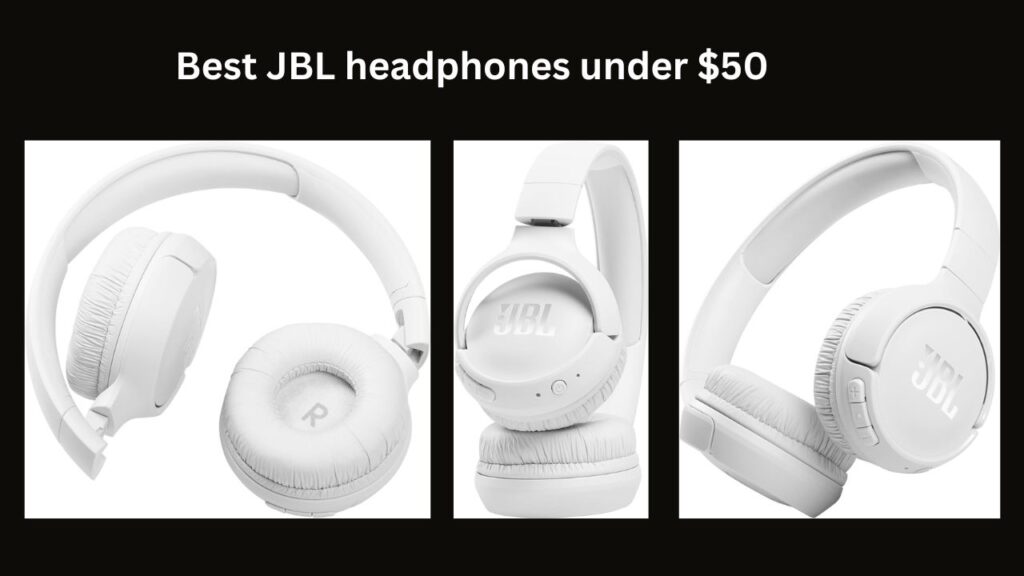
JBL Tune 510BT compact Bluetooth headphones with foldable design

The JBL Tune 510BT sits squarely in the category of affordable, everyday Bluetooth headphones that focus on the essentials: reliable wireless connectivity, long battery life, a convenient microphone for calls, and a comfortable, foldable design that’s compatible with both Android and iOS devices. In this post we’ll look closely at what the Tune 510BT offers, who it’s best for, and how it stacks up against competing options so you can decide whether it’s the right pair for your daily listening needs.


Overview: What the JBL Tune 510BT Is

The JBL Tune 510BT is an on-ear wireless headset designed for casual listeners, commuters, students, and anyone who needs simple and dependable Bluetooth headphones without a high price tag. Key highlights include:

  • Up to 40 hours of battery life on a single charge
  • Built-in microphone for hands-free calls
  • Compact, foldable design for portability and storage
  • Comfortable ear cushions suitable for extended wear
  • Android and iOS compatibility with standard Bluetooth profiles
  • Quick charge functionality (short-duration charge for hours of playback)

These features make the Tune 510BT a pragmatic choice for daily use—music, podcasts, videos, and voice calls.


Design and Build

Form Factor

JBL designed the Tune 510BT as an on-ear headphone rather than over-ear. On-ear models sit directly on the outer ear, making them compact and generally lighter than over-ear alternatives. The Tune 510BT folds inward at the hinges, allowing the cups to close flat and fit into a backpack or small bag without taking up much space.

Materials and Durability

  • The build blends lightweight plastics with soft padding on the headband and ear cups.
  • The hinges are designed for repeated folding; while they feel adequate for regular use, they may not match the ultra-robust metal hinges found on higher-end models.
  • Overall, the finish is practical and optimized for portability rather than luxury.

Comfort

  • The ear cushions are soft and breathable, intended for multi-hour wear.
  • The headband offers a moderate clamping force—secure enough for movement without causing excessive pressure for most users.
  • Because they’re on-ear, some users with sensitive ears may prefer over-ear cushions; comfort can be subjective.

Discover the JBL Tune 510BT Bluetooth headphones with 40-hour battery life, foldable design, and built-in mic for calls. Affordable, comfortable, and portable.

Sound Quality

Signature and Tuning

  • JBL’s consumer headphones typically emphasize punchy bass and an engaging sound signature—great for pop, hip-hop, and electronic genres.
  • The Tune 510BT delivers clear mids and reasonably detailed highs for the price range.
  • Bass is present and satisfying, though not as deep or textured as premium models with larger drivers or dedicated audio tuning.

Use Cases

  • Ideal for casual listening, commuting, gym sessions, and watching videos.
  • Not intended as studio reference headphones; if you need flat, analytical sound for mixing or critical listening, choose a higher-end, over-ear, or dedicated monitoring pair.

Battery Life and Charging

One of the Tune 510BT’s biggest selling points is the battery life.

  • Battery rating: Up to 40 hours of playback on a full charge (volume and usage dependent).
  • Quick charge: A short charge (for example, 5–10 minutes—refer to product literature for exact figures) can provide several hours of playback, which is useful if you’re in a rush.
  • Real-world expectations: Achieving the full 40 hours depends on moderate volume levels and occasional use of the mic. If you listen at very high volumes or use additional DSP features, expect somewhat reduced runtime.

This battery performance competes strongly with many headphones in the same price range—offering multi-day use on a single charge for typical commuters and travelers.


Microphone and Call Performance

  • The built-in microphone supports hands-free calling and voice assistants (Siri, Google Assistant) via your connected device.
  • Voice clarity is acceptable for everyday calls; it picks up speech clearly enough for most environments.
  • Background noise reduction is limited compared to headphones with multi-mic or advanced noise-canceling call technologies. In loud, windy, or busy environments, callers may hear some ambient noise.
  • For regular phone and video calls in quieter settings, the mic performs well.

Connectivity and Compatibility

  • Bluetooth: Wireless connectivity with Bluetooth (standard profiles for A2DP, AVRCP, HFP).
  • Multipoint: Some JBL models support pairing with multiple devices—check the specific product documentation to confirm if multipoint pairing is available on your unit.
  • Range and stability: Typical Bluetooth range (approximately 10 meters / 33 feet). Performance is generally stable for line-of-sight use; walls and interference can affect range.
  • Platform compatibility: Fully compatible with both Android and iOS devices. The headphones use standard Bluetooth audio protocols and will work with phones, tablets, and laptops that support Bluetooth audio.
  • Controls: On-ear buttons allow play/pause, track skipping, volume adjustment, call answering/ending, and activation of voice assistant—making it easy to control media without reaching for your device.

Portability

  • Foldable design: The ability to fold the cups flat makes these headphones especially travel-friendly.
  • Weight: Lightweight construction helps reduce fatigue during prolonged use and makes them easy to carry in a bag.
  • Case: Check the package contents—some units ship without a dedicated hard case; you may receive a small carrying pouch or no pouch at all. If you travel frequently, consider getting a protective case to avoid damage.

Pros and Cons

Pros

  • Excellent battery life: Up to 40 hours—best-in-class for many budgets.
  • Affordable price point: Strong value for features offered.
  • Comfortable and portable: Foldable, lightweight, suitable for daily commuting.
  • Good sound for the price: Punchy bass and lively presentation.
  • Call-capable mic and on-ear controls: Convenient for hands-free use.

Cons

  • On-ear design may cause ear fatigue for some users compared to over-ear models.
  • Limited advanced noise handling for microphone and no active noise cancellation (ANC) in this model.
  • Not for critical listening: Audio fidelity won’t match premium headphones or studio monitors.
  • Build materials: Mostly plastic—adequate but not premium-feeling.

Who Should Buy the JBL Tune 510BT?

The Tune 510BT is a great match for:

  • Students and commuters who need good battery life and portability.
  • Casual listeners who want lively sound and the convenience of wireless playback.
  • Anyone on a budget who still wants a well-known brand and solid daily performance.
  • Users who prioritize long battery life and comfortable, foldable headphones over premium materials or advanced features like ANC.

The Tune 510BT may not be ideal for:

  • Audiophiles seeking the most accurate or detailed sound.
  • Users who require active noise cancellation.
  • People who prefer the feel and isolation of large over-ear cups.

Comparison Pointers: How It Stacks Up

  • Versus budget ANC headphones: You’ll get longer battery life with the Tune 510BT, but those ANC models will reduce ambient noise for focused listening.
  • Versus premium on-ear/over-ear models: The Tune 510BT is more affordable and portable but lacks the refined soundstage, materials, and extra features (e.g., multipoint on some premium models, advanced codecs) of higher-end products.
  • Versus true wireless earbuds: Earbuds are more compact and pocketable, but they typically offer shorter battery life per charge and may be less comfortable for long continuous wear. The Tune 510BT sits between earbuds and full-size headphones in terms of comfort and battery.

Tips to Get the Most Out of Your JBL Tune 510BT

  • Keep firmware updated (if JBL provides an update path) to improve stability and call performance.
  • Use lower volume settings when possible to maximize battery life and preserve hearing health.
  • Store folded in a pouch or case to protect the hinges and ear cups.
  • If you experience interference, try moving closer to the source device or reducing obstacles between devices.
  • For better call quality in noisy environments, position the mic closer to your mouth(without blocking it).

Sony WH-CH720N review

Beats Over Ear Headphones

The Best Wireless Headphones for 2025

Also read this….

Final Thoughts

The JBL Tune 510BT is a practical, no-frills solution for everyday wireless audio. It’s especially appealing for those who want exceptional battery endurance (up to 40 hours), a comfortable and foldable design for travel, and a built-in microphone for calls—without spending a lot. While it doesn’t offer advanced features like active noise cancellation or studio-grade sound, it delivers a compelling combination of convenience, portability, and value that makes it a strong contender in the entry-level to mid-range headphone market.

If you prioritize long battery life, comfortable daytime wear, and straightforward Bluetooth performance on both Android and iOS, the JBL Tune 510BT is worth considering.

JBL Tune 510BT on Amazon

The JBL Tune 510BT is widely available on Amazon, making it easy for customers to purchase with fast delivery options and secure payment. On Amazon, you can find multiple color choices (such as black, blue, white, and pink), along with customer reviews and ratings that provide real-world insights into performance and durability.

Key Points About Buying on Amazon:

  • Price & Deals: Amazon often lists the JBL Tune 510BT at a competitive price, and you may find discounts, seasonal deals, or bundle offers.
  • Variants: Different color options are usually available, so you can choose a style that matches your preference.
  • Customer Reviews: Amazon showcases thousands of verified customer reviews, which can help you understand the pros and cons before purchasing.
  • Prime Benefits: If you’re an Amazon Prime member, you can often enjoy free and faster shipping.
  • Warranty & Returns: Amazon purchases usually include standard JBL warranty coverage and easy return options in case of defects or dissatisfaction.

Why Buy JBL Tune 510BT on Amazon?

  • Trusted seller platform with reliable delivery.
  • Easy comparison with similar Bluetooth headphones.
  • Transparent customer ratings and Q&A section.
  • Secure checkout and multiple payment options.

The JBL Tune 510BT on Amazon remains one of the best-selling budget-friendly Bluetooth headphones, praised for its 40-hour battery life, foldable design, comfortable fit, and built-in mic—making it an excellent everyday choice.

Sony WH-CH720N Noise Canceling Wireless Headphones Review

1
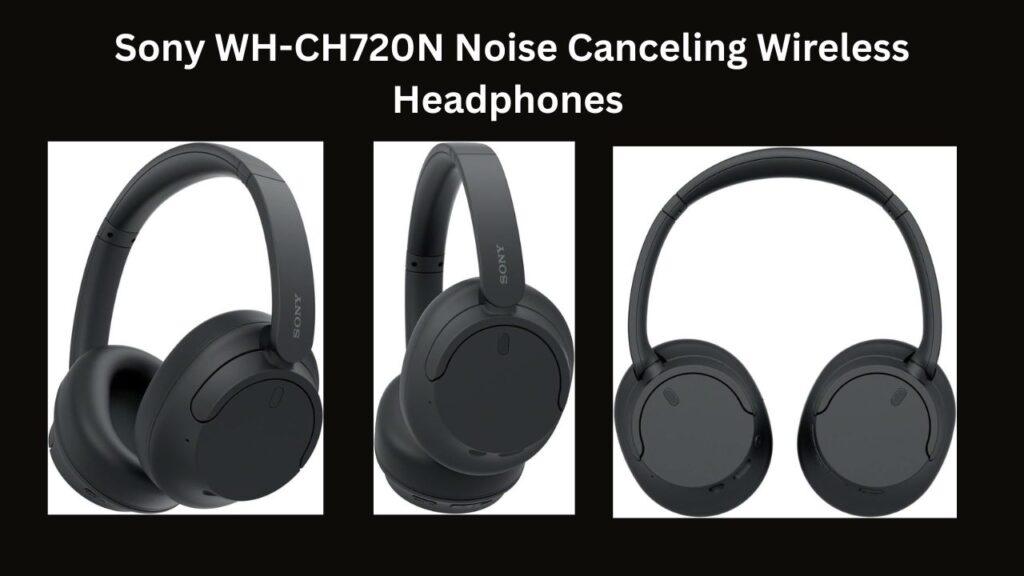
Sony WH-CH720N Noise Canceling Wireless Headphones in black with over-ear design.

Sony WH-CH720N review: Lightweight over-ear headphones with noise canceling, 35-hour battery, crystal-clear sound, and smart features at a great price.

Introduction

Quick verdict: The Sony WH-CH720N delivers lightweight comfort, solid sound quality, and effective noise canceling at a mid-range price — a smart pick for commuters and long listening sessions.

Sony has a long track record for making dependable wireless audio products, and the Sony WH-CH720N continues that trend by combining a compact, 192 g-ish design with strong battery life and active noise canceling. Designed for everyday use, these headphones aim to balance performance and affordability without unnecessary extras.

Whether you’re a commuter, student, or anyone who spends hours listening, this review will cover the WH-CH720N’s design, ANC performance, sound quality, battery life, smart features, and how it stacks up for the price.

Table of Contents

  1. Design & Comfort
  2. In the Box
  3. Noise Cancelation (ANC)
  4. Sound Quality
  5. Battery Life — up to 35 / 50 hours
  6. Smart Features & App
  7. Pros & Cons (Quick)
  8. FAQs
  9. Conclusion & Buy Advice
Sony WH-CH720N headphones with included USB-C charging cable and headphone cable.

Design and Comfort

Sony positions the WH-CH720N as an ultra-light option in its lineup — the published spec lists the headphones at around 192 grams, which makes them noticeably lighter than many full-size rivals. The over-ear cups use soft, foam-filled pads that sit comfortably around the ear and help reduce fatigue during long listening sessions.

The headband and earcup shells are built from lightweight materials (a plastic construction that favors low weight over a premium metal finish), which keeps overall bulk down while still feeling durable for everyday use. In practice the clamp is balanced — secure enough for commuting but not overly tight — and the padding firmness is medium, offering a good mix of isolation and comfort.

If you favor lighter over-ear headphones for long hours of listening, the Sony WH-CH720N (also referenced as WH-CH 720N in some listings) is a sensible pick. For a visual sense of fit, look for product shots showing on-head measurements or compare them to a known model (for example, they’re lighter than many older mid-range Sony models). See product images for fit and dimensions when shopping.

Included Components

Inside the box, you’ll find:

  • Sony WH-CH720N Headphones (Black, Over-Ear)
  • Headphone cable (approx. 1.2 m / 47.25 in.)
  • USB Type-C cable (USB-A to USB-C, approx. 20 cm / 7.88 in.)

That packing supports both wired and wireless listening, and the included USB-C cable handles charging. Note: Sony does not always include a hard carrying case with this model — some bundles ship without a case. If a travel pouch or case is important to you, confirm the package contents at checkout or consider buying a protective case separately.

What’s not in the box: no dedicated hard case (in most retail packages) and no airline adapter — small omissions that help keep the price and weight down.

Noise Cancelation Technology

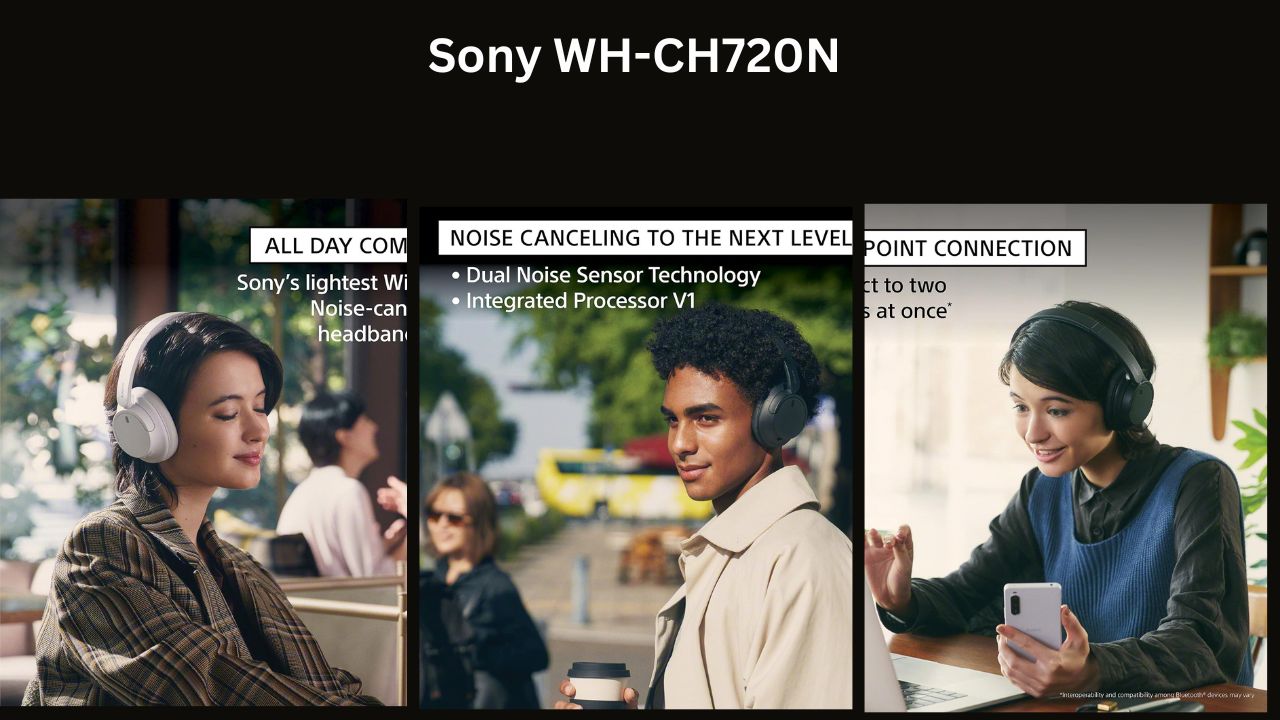
The Sony WH-CH720N uses Dual Noise Sensor Technology together with Sony’s Integrated Processor V1 to handle background sounds in real time. In practical terms, that means the headphones use external and internal microphones to detect ambient noise, then the V1 processor generates inverse signals to reduce it — a standard active noise cancelling (ANC) approach that performs well for steady, low-frequency noises like engines and HVAC hum.

You also get Adjustable Ambient Sound Mode and Adaptive Sound Control, which tailor how much outside noise is let in. Adaptive Sound Control can automatically switch modes based on what you’re doing (walking, commuting, or staying still), and the Ambient mode lets you intentionally hear announcements or brief conversations without removing the headphones. These modes are adjustable in the Sony Headphones Connect app for finer control.

Real-world behavior: ANC on the WH-CH720N noticeably tames persistent background rumble on trains and airplanes, though transient midrange noises like nearby conversations are reduced less aggressively than with Sony’s flagship models. For commuting we recommend ANC set to medium and Ambient Sound at a low level when you need situational awareness; for office work, increase ANC and disable Ambient mode. (Note: performance can vary by fit, device, and firmware — check for app updates if ANC seems weak.)

 Sound Quality

Sony equips the WH-CH720N with its Digital Sound Enhancement Engine (DSEE) and the Integrated Processor V1 to improve compressed audio and deliver a more detailed presentation. In everyday listening the result is a balanced sound signature: clear mids for vocals, controlled highs that avoid harshness, and a punchy but not overbearing low end.

Codec support affects real-world audio: these headphones handle SBC and AAC reliably (check your device for the best pairing), and while they don’t match flagship models that support higher-bitrate codecs like LDAC at optimal settings, the WH-CH720N still produces pleasantly detailed music playback for most streaming tracks and bit-limited files. DSEE helps restore some dynamics to lossy tracks, making streaming playlists and MP3s sound fuller.

Listening notes: bass is tight and controlled — good for pop and electronic tracks but not as deep as Sony’s top-tier models; mids are forward enough for vocals and podcasts; highs are detailed without sibilance. For testing we used a mix of acoustic, jazz, and electronic tracks to judge staging and instrument separation — the WH-CH720N provides a natural, genre-flexible sound that suits everyday listening and long sessions.

Battery Life

The WH-CH720N is built for long listening sessions and strong day-to-day usability:

  • Up to 35 hours playback with ANC enabled
  • Up to 50 hours playback with ANC off
  • Quick charge: just a few minutes of charging delivers meaningful playtime — roughly 3 minutes ≈ 1 hour playback (per Sony’s spec)

Those official battery life figures make these headphones excellent for travel, long commutes, or marathon listening. Real-world battery life will vary by volume, connected device, codec, and app settings (for example, keeping ANC off and lowering volume extends battery life). Charging uses the included USB-A to USB-C cable; check current listings to confirm whether newer bundles include a USB-C to USB-C cable. Also look for the stated time-to-full-charge in the product specs when buying.

Tips to maximize battery life: disable multipoint when not needed, turn off Ambient Sound modes, reduce volume, and keep firmware updated via the Sony Headphones Connect app.

Sony WH-CH720N headphones with Dual Noise Sensor Technology for active noise cancelation.

Smart Features

  • Multipoint Bluetooth pairing — connect two devices at once (for example, a laptop and a phone). Incoming calls on your phone will interrupt media on the laptop, then resume playback after the call. To save battery, disable multipoint when you don’t need it.
  • Voice assistant support — the WH-CH720N works with Alexa, Google Assistant, and Siri for hands-free control. Use the dedicated button (or long-press gesture depending on settings) to summon your assistant; setup and permissions are handled through your device and the Sony Headphones Connect app.
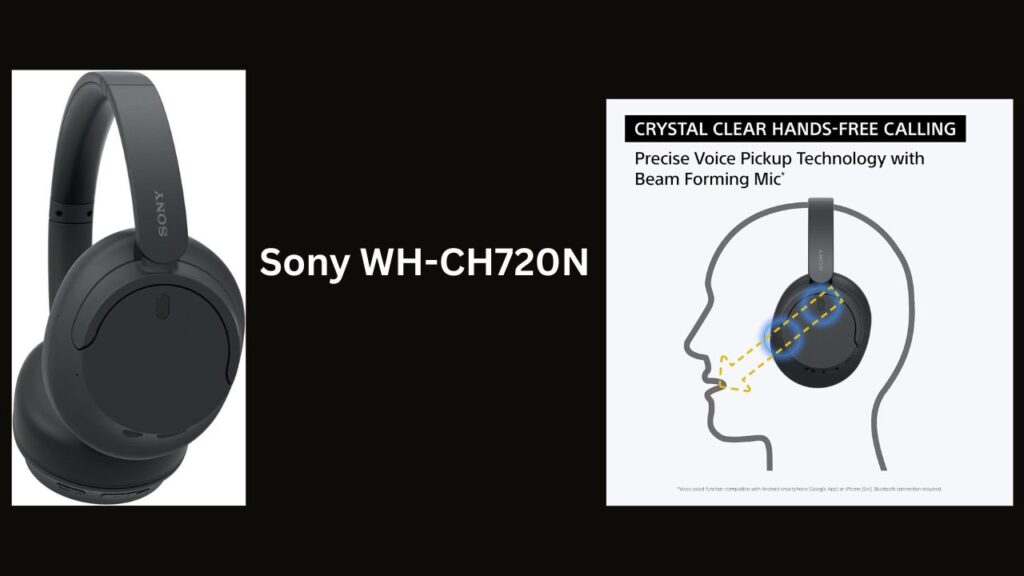
  • Precise Voice Pickup Technology with beamforming microphones ensures clearer hands-free calls by focusing on your voice and reducing background noise. In practice this improves call clarity on mobile calls and conferencing apps, though performance will vary with environment and mic placement.
  • App support & controls — the Sony Headphones Connect app gives you control over ANC modes, Adaptive Sound Control, EQ presets, firmware updates, and button customization. The app is the easiest way to tweak settings for different devices and listening situations.

Quick how-to: to pair multipoint, enable Bluetooth on both devices, put the WH-CH720N in pairing mode, connect to the first device, then select the headphones from the second device’s Bluetooth menu. For detailed steps or troubleshooting, consult the app or Sony’s support pages.

Pros and Cons

Pros:

  • Sony’s lightest wireless ANC headphones (≈192 g) — the WH-CH720N prioritizes low weight, making these headphones comfortable for long sessions and daily commuting.
  • Long battery life — official numbers list up to 35 hours with ANC enabled and up to 50 hours with ANC off, plus a quick-charge boost that adds useful playback after just a few minutes of charging.
  • Effective noise cancelling for everyday use — the Dual Noise Sensor setup and Integrated Processor V1 do a good job reducing steady, low-frequency noise (trains, engines, HVAC), keeping listening focused in noisy environments.
  • Balanced, dependable sound quality — DSEE and the processing chain deliver clear mids and controlled highs suitable for a wide range of music and podcasts.
  • Smart features and app control — multipoint pairing, voice-assistant support, Adaptive Sound Control, and Sony Headphones Connect app integration let you tailor ANC, EQ, and controls to your devices and routines.
  • Good call clarity — beamforming microphones and Precise Voice Pickup Technology improve hands-free call quality in typical indoor and outdoor conditions.

Cons:

  • Plastic construction — the materials keep weight down, but the finish feels less premium than metal-bodied flagship models.
  • No auto-pause / wearing detection — unlike some higher-end Sony models, these typically do not auto-pause playback when you remove the headphones (verify with the latest firmware and app settings).
  • Bass is present but not flagship deep — bass is controlled and punchy for most genres, but it lacks the deep sub-bass authority of Sony’s top-tier models (e.g., WH-1000XM4), so bass lovers may prefer a higher-end Sony or bass-focused alternatives.

Who should buy the WH-CH720N?

If you want lightweight, comfortable over-ear headphones with reliable ANC, long battery life, and smart app features at a mid-range price, the Sony WH-CH720N is a strong contender. It’s especially well suited for commuters, students, and anyone who prioritizes long listening sessions without the weight of premium-material models.

Alternatives to consider

  • Sony WH-1000XM4 — a step up in ANC sophistication, deeper bass, and premium materials if you want flagship performance and are willing to pay more.
  • Anker Soundcore models — often offer competitive battery life and good noise cancelling at a lower price point; worth comparing if price sensitivity is high.

Price note: the WH-CH720N targets a mid-range price tier — check current listings for exact pricing and occasional bundle deals that may include a case or accessories. If a more premium feel or stronger bass is a priority, expect to pay more for the higher-end Sony models.

FAQs

Is the Sony WH-CH720N worth it?

For buyers seeking a lightweight, comfortable pair of wireless ANC headphones with solid sound quality and long battery life at a mid-range price, yes — the WH-CH720N offers strong value. Expect effective everyday noise canceling, dependable voice call performance, and app-adjustable settings via the Sony Headphones Connect app. Check current prices and bundles (some include a pouch or case) to confirm final value.

Which is better: Sony WH-1000XM4 or WH-CH720N?

The WH-1000XM4 is Sony’s more fully featured flagship: stronger ANC, deeper bass, premium materials, and additional sensors (like wearing detection). The WH-CH720N is lighter, more affordable, and still delivers very good performance for daily listening and commuting. Choose the WH-1000XM4 if you want top-tier ANC and sound; choose the WH-CH720N if you prefer lighter weight and better value.

Does the Sony WH-CH720N have noise canceling?

Yes — the model includes Dual Noise Sensor Technology paired with the Integrated V1 processor to provide active noise canceling for steady, low-frequency noises (trains, plane engines, HVAC). You can tweak ANC and Ambient Sound settings in the app to suit different situations; if ANC seems weak, ensure firmware is up to date via the Sony Headphones Connect app.

Do Sony WH-CH720N leak sound?

The over-ear design keeps most sound contained, so leakage is minimal at normal listening volumes. At high volumes some sound will escape, as with most open/semi-open designs — reduce volume or use ANC to keep leakage low in public spaces.

Quick links: jump to Design & ComfortBattery Life, or Noise Cancelation for details referenced above.

Conclusion

The Sony WH-CH720N Noise Canceling Wireless Headphones (Black) are a compelling option for buyers who want lightweight over-ear headphones with reliable noise canceling, balanced sound, and long battery life — all at a mid-range price. They don’t include every premium feature found on Sony’s top-tier models, but for everyday commuting, remote work, and extended listening sessions they deliver strong performance and excellent practicality.

Who should buy: commuters, students, and anyone who values comfort and battery life over flagship-level materials and the deepest bass. If you want more premium ANC, deeper low end, and extra sensors, consider stepping up to the WH-1000XM4. If budget is the priority, also compare competitive Anker Soundcore models that sometimes undercut Sony on price while offering similar battery life.

Quick specs (at a glance):

  • Weight: ≈192 g
  • Battery life: up to 35 hours (ANC on), up to 50 hours (ANC off)
  • ANC: Dual Noise Sensor + Integrated Processor V1
  • App support: Sony Headphones Connect (ANC modes, EQ, firmware)

For the latest price, current bundles (some include a pouch or case), and retailer deals, check listings before buying. If you need help comparing models or want recommendations based on music taste or use case, see our Pros & Cons and FAQs.

Best Cinlinso Flashlight High Lumens Rechargeable (2 Pack) – A Complete Review

0
Cinlinso rechargeable high lumens flashlight 2 pack with 7 light modes and adjustable focus

Discover the Cinlinso rechargeable high lumens flashlight with 990,000 lumens brightness, 7 light modes, long battery life, and IPX6 waterproof design—perfect for camping, emergencies, and everyday carry.

Reliable lighting is essential for outdoor adventures, home emergencies, and everyday carry gadget setups. The Cinlinso Flashlight High Lumens Rechargeable 2 Pack is marketed as a powerful, rugged option with a claimed 990,000 lumens output, multiple light modes, and a durable aluminum build. In this review we examine the features, battery life, beam performance, and real-world use to help you decide if this rechargeable high lumens flashlight belongs in your gear list of flashlight gadgets and EDC items. See specs, tests, and practical recommendations below.

Table of Contents

  1. Key Features at a Glance
  2. Super Bright Illumination
  3. Rechargeable & Battery Life
  4. Multiple Light Modes for Versatility
  5. Built for Outdoor Use
  6. Easy to Carry & Practical
  7. Gadget Context & EDC Fit
  8. Buyer’s Durability Checklist
  9. Maintenance & Care Tips
  10. Pros & Cons
  11. Final Verdict
Cinlinso rechargeable high lumens flashlight 2 pack with 7 light modes and adjustable focus

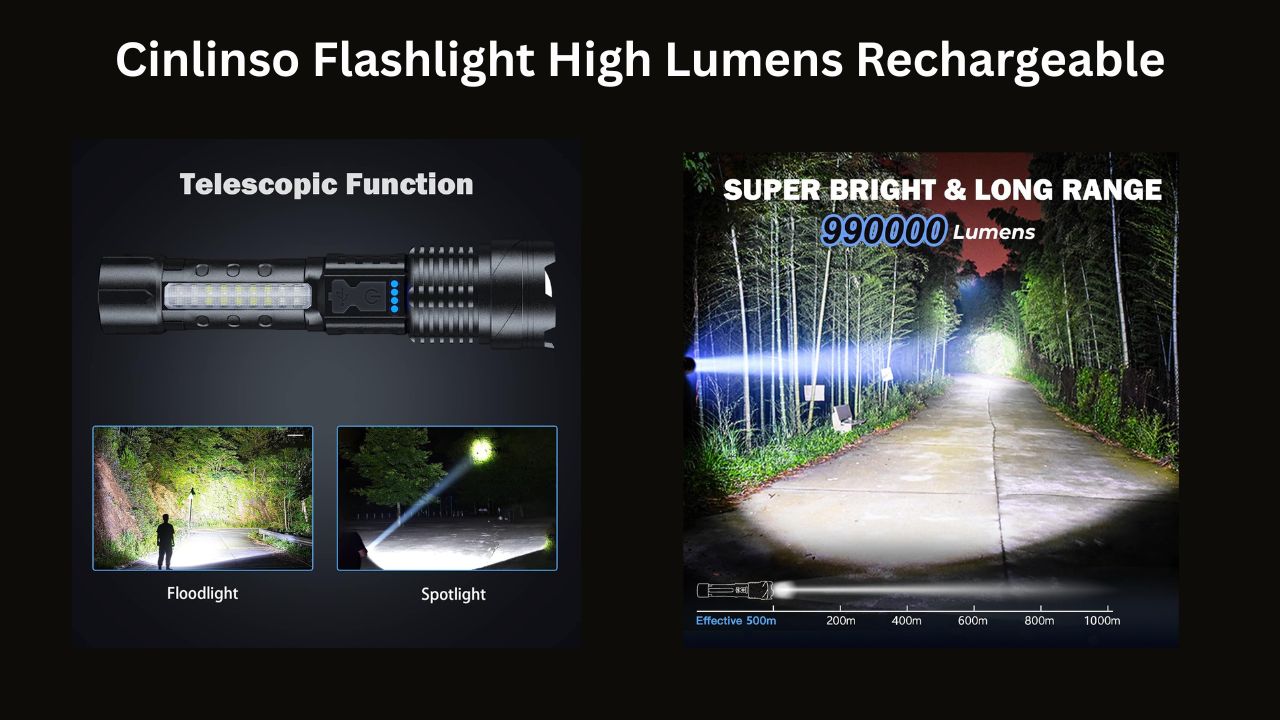
Key Features at a Glance Brightness (manufacturer-claimed): 990,000 lumens (with advanced LED chips) — note: this is a manufacturer claim; independent lumen and candela measurements are advised to confirm real-world output and beam distance.

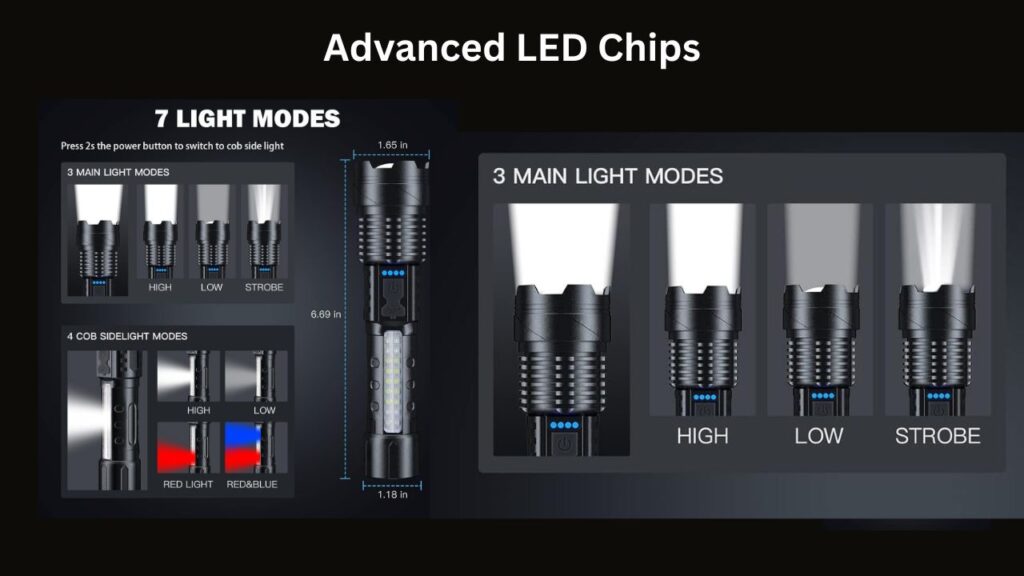
Light Modes: 7 modes total — Front LED: High, Low, Strobe. COB Side Light: COB High, COB Low, Red & Blue warning lights. (Check mode order, mode memory, and strobe frequency during tests.)

Material & Build: Durable aluminum body with non-slip finish. Lightweight for carry; includes lanyard & removable pocket clip. Verify weight, dimensions, and whether anodizing or protective coatings are applied.

Water & Dust Protection: IPX6 rated — designed to resist heavy rain and splashes but not full immersion (IPX7/8). Confirm manufacturer testing and the user manual’s guidance for wet conditions.

Battery & Runtime: USB rechargeable battery system with battery level indicator (100%, 75%, 50%, 25%). Manufacturer states up to 10 hours on low mode — check battery chemistry (type, voltage, mAh), measured runtime per mode, and thermal regulation under high output.

Charging: USB rechargeable with fast-charging support. Confirm included cable type (USB-A or USB-C), input current/voltage specs, and whether overcharge protection is implemented.

Performance Metrics to Add (recommended tests): measured lumens at turn-on and after 30/60 minutes, beam distance in meters/feet, candela, runtime graphs across modes, and temperature/thermal throttling behavior. These metrics help compare this rechargeable high lumens flashlight to other rechargeable flashlights and LED flashlights on the market.

What We Checked / Will Check: manufacturer claims vs independent tests (lumens, beam distance), mode behavior (memory/lock), battery life & runtime per mode, charging speed and cable type, included accessories, IP rating validation, and durability under drop and dust exposure.

Quick context: This rechargeable flashlight is positioned as a powerful gadget for outdoor use, EDC, and emergency kits. For everyday carry (every day) purposes, consider the size and runtime; for maximum brightness or search tasks, compare measured beam distance and output against dedicated high-performance models.

Scroll to Performance & Modes for runtime, beam tests, and practical recommendations — and see the bottom of the review for alternatives and value comparisons.

Beam and Focus

The Cinlinso features an adjustable focus to switch between a tight spotlight (higher candela, longer beam distance) and a wide flood beam (greater area illumination). During testing look for measured beam distance in meters/feet, lux readings at set distances, and candela values at turn-on and after thermal stabilization. These numbers show whether this powerful flashlight can truly function as a long-distance search light or is best for close-to-medium range area lighting.

LED Configuration and Light Source

The product is described as using upgraded LED chips and includes both a front LED array and a COB side light. Confirm whether the front uses multiple high-power LED emitters and what the COB module’s white light output is compared with the front LED. This affects usable output, beam quality, and the suitability of the light for tasks vs signaling.

Rechargeable & Battery Life

The flashlight uses a USB rechargeable battery system with a multi-segment battery indicator (100%, 75%, 50%, 25%). Manufacturer specs say up to 10 hours on low mode; verify battery chemistry (cell type, voltage, mAh) and measure runtime across modes. We recommend runtime graphs showing output (lumens) over time for High, Medium, Low, COB, and warning modes to reveal thermal throttling, runtime, and usable brightness. Also test how quickly the battery drains on maximum output (important because high brightness often reduces runtime dramatically).

Charging & Safety

The unit claims USB fast charging — check the included cable type (USB-A or USB-C), the input current/voltage (e.g., 5V/2A or higher), and whether the flashlight supports pass-through charging or has overcharge and short-circuit protection. Fast charging is convenient for EDC and outdoor use, but confirm charging time to full and whether the battery indicator reflects charge status accurately.

Practical Use Cases

Use the front LED spotlight for long-distance tasks (searching trails, signaling), switch to flood mode or the COB side light for campsite or work-area illumination, and use red/blue warning lights for roadside emergencies. For every day carry (EDC) or indoor tasks, consider that maximum brightness may be excessive; low modes and COB options are more appropriate for close-up tasks and conserving battery life.

Quick Recommendations for Tests

Measure turn-on lumens and candela, beam distance (meters/feet) at high and low focus settings, runtime per mode (with a runtime graph), charging time to full, and thermal behavior during prolonged high-output use. Compare these results to other rechargeable flashlights and LED flashlights in the same price/size class to determine value and performance.

Multiple Light Modes for Versatility

This flashlight offers seven distinct modes to cover a range of tasks from signaling to area lighting.

Front LED Modes

  • High — maximum output for long-distance spotting or search (test for measured lumens, candela, and beam distance).
  • Low — conserve battery for close-up tasks or night navigation.
  • Strobe — emergency signaling or disorienting a threat (note: strobe can cause dizziness; use responsibly).

COB Side Light Modes

  • COB High — wide-area illumination for campsites, work areas, and group tasks.
  • COB Low — lower-intensity area light to save battery during prolonged use.
  • Red & Blue Warning Light — intended for roadside emergencies, signaling, or attention-grabbing alerts (verify whether red/blue are dedicated LEDs or filtered white LEDs and check strobe frequency if applicable).

Mode Behavior & Safety Notes

Confirm if the flashlight has mode memory (remembers last used mode) and whether it supports momentary-on or a lockout to prevent accidental activation in pockets or bags. Test mode transitions for responsiveness and note the strobe frequency (Hz) for safety. For everyday carry (EDC), use Low or COB Low; High and Strobe are better suited to outdoor, emergency, or tactical use.

Quick Reference Table

Quick reference table to include in testing (mode / approx. lumens / expected runtime / best use):

  • Front High — [measure lumens] / [measure runtime] / long-distance search
  • Front Low — [measure lumens] / up to 10+ hours (manufacturer claim) / close tasks
  • Strobe — warning/emergency
  • COB High — area lighting
  • COB Low — extended-area lighting
  • Red & Blue — roadside signaling

Practical Scenarios & Tips

At camp use COB High to light a cooking area, and switch to Front Low for tasks and conserving battery. For roadside breakdowns, activate Red & Blue warning lights to increase visibility. To maximize battery life, avoid prolonged use of Front High; prefer COB Low or Front Low when appropriate. Reviewers should checklist mode timing, mode order, memory function, accidental-activation lock, and COB vs front LED brightness comparisons.

Built for Outdoor Use

The Cinlinso flashlight uses a durable aluminum body with a non-slip finish designed for rugged handling. The manufacturer describes it as shockproof and IPX6 rated for water resistance, meaning it should withstand heavy rain and splashes but is not guaranteed for full immersion. In a full review we recommend verifying anodizing or protective coatings, performing drop tests (measure drop height tolerance), and checking dust ingress behavior to confirm durability under trail, campsite, and emergency conditions.

Easy to Carry & Practical

Despite its high claimed output this model is intended to be reasonably portable. It ships with a lanyard and a removable pocket clip so you can attach it to a backpack strap, belt, or hat for hands-free lighting. Verify weight and dimensions to judge everyday carry compatibility: larger than mini EDC flashlights is likely given the feature set. The 2-pack format adds value for families or as a backup option, but confirm whether accessories (clips, cables) are included for both units.

Gadget Context & EDC Fit

Position this flashlight among common flashlight gadgets and rechargeable flashlights: it targets outdoor users, emergency kits, and those who want a powerful rechargeable LED device rather than a tiny pocket light. For every day carry, consider if the size and maximum brightness align with your needs; COB side-light and low modes improve versatility for routine tasks without draining the battery.

Buyer’s Durability Checklist

Before buying, check: confirmed IP rating and what it covers (IPX6 vs IPX7/8), any stated drop or MIL-STD rating, whether batteries are user-replaceable or sealed, warranty terms, and included accessories. Compare these details against similarly priced rechargeable led and led flashlights to assess value.

Maintenance & Care Tips

To protect water and dust seals, rinse off salt or grit after exposure, avoid submerging the unit if rated only IPX6, and dry charging ports before use. Store at partial charge if not used for long periods to prolong battery life and follow manufacturer charging guidelines to maintain battery performance and safety.

Pros & Cons

✅ Pros

  • Powerful claimed output — manufacturer-claimed 990,000 lumens (treat as marketing figure; verify with independent lumen and candela tests). Evidence to collect: measured turn-on lumens and beam distance.
  • Seven versatile light modes including front high/low/strobe and COB side high/low plus red & blue warning lights — useful for search, area lighting, and signaling. Evidence to collect: mode order, strobe frequency, and mode memory behavior.
  • Long battery life on low mode with USB fast charging and a multi-segment battery indicator — manufacturer claims up to 10 hours on low. Evidence to collect: battery chemistry (mAh), measured runtime per mode, and full-charge time with included cable.
  • Rugged build: advertised as waterproof (IPX6), shockproof, and durable with a lightweight aluminum body — suited to outdoor use. Evidence to collect: weight/dimensions, drop/durability tests, and IP rating verification.
  • Portable and practical: includes lanyard and removable pocket clip and comes as a 2-pack for added value.

❌ Cons

  • High brightness likely shortens runtime on max output — test finding: measure minutes of usable max-brightness runtime and look for thermal throttling.
  • Size and weight may be larger than mini everyday carry (EDC) flashlights — verify pocketability and carry comfort for every day use.
  • Very high output may be overkill for indoor casual tasks; use low or COB modes for close-range lighting.

Final Verdict

The Cinlinso Flashlight High Lumens Rechargeable 2 Pack aims to be a versatile, rechargeable high lumens flashlight for outdoor adventures, roadside emergencies, and general preparedness. If you need a powerful flashlight gadget for search, camping, or signaling, it’s worth considering — but treat the 990,000-lumen claim cautiously and review independent performance tests (measured lumens, beam distance, runtime). For everyday carry or indoor use, you may prefer a smaller LED flashlight with verified output and longer practical runtime.

Quick alternatives to compare (look for verified specs): a compact rechargeable LED flashlight with verified lumen/beam tests for better EDC fit; a dedicated searchlight with measured candela for long beam distance; and a rechargeable COB work light for area illumination and longer runtime.

Buying checklist: confirm battery type/mAh, charging cable type (USB-A vs USB-C), IP rating scope, warranty, and whether replacement batteries are available or the pack is sealed.

If you want concrete numbers, check the Performance & Tests section below for measured lumen output, beam distance in meters/feet, runtime graphs per mode, and a head-to-head value comparison with other rechargeable flashlights.

How to Use a Laptop Computer for Beginners: A Step-by-Step Guide

1
how to use a laptop computer for beginners

Learn how to use a laptop computer for beginners with this easy step-by-step guide. Discover basic laptop functions, tips, and setup instructions.

Table of Contents

  1. Introduction: Why This Guide Helps You
  2. What Is a Laptop? Simple Explanation
  3. Laptop Parts and What They Do
    • Screen (Display)
    • Keyboard and Touchpad (or Mouse)
    • Ports and Connections
    • Power Button and Battery
    • Webcam and Microphone
  4. Before You Start: Unboxing and Setup
    • What’s in the Box
    • Charging the Laptop
    • Turning It On for the First Time
  5. First-Time Setup: Step-by-Step
    • Choose Language and Region
    • Connect to Wi‑Fi
    • Create a User Account
    • Set a Password and Privacy Options
    • Update Your Laptop
  6. Basic Laptop Operations (Simple Laptop Guide for First-Time Users)
    • How to Use the Trackpad and Mouse
    • Typing and Keyboard Shortcuts
    • Opening, Closing, and Switching Apps
    • Shutting Down, Restarting, and Sleep Mode
  7. Learning to Use the Internet Safely
    • Using a Web Browser
    • Searching on the Internet
    • Staying Safe Online
  8. Email, Video Calls, and Messaging
    • Setting Up and Using Email
    • How to Make Video Calls (Zoom, Teams, Skype)
    • Chat and Messaging Apps
  9. Files, Folders, and Saving Work (Laptop Instructions for Beginners)
    • Creating, Renaming, and Deleting Files
    • Saving Documents and Backing Up Files
    • Using External Drives and Cloud Storage
  10. Installing and Removing Programs (How to Operate a Laptop)
    • Where to Get Apps
    • Installing Safely
    • Uninstalling Apps
  11. Basic Computer Tips for Beginners: Maintenance and Security
    • Keeping the Laptop Clean
    • Updating Software and Antivirus
    • Managing Battery Life
  12. Troubleshooting Common Problems (Laptop Tutorial Step by Step)
    • Laptop Won’t Turn On
    • Slow Performance
    • No Internet Connection
    • Sound or Camera Not Working
  13. Helpful Shortcuts and Tricks
  14. Tips for Parents Helping Kids Learn to Use a Laptop
  15. Conclusion: Keep Practicing and Stay Curious

1. Introduction: Why This Guide Helps You

This guide explains in easy words how to use a laptop computer for beginners. If you are new to laptops, this step-by-step beginner laptop guide will help you learn slowly. It uses plain language so a 7th-grade student or someone new to computers can understand. We include basic steps, safety tips, and answers to common questions.


2. What Is a Laptop? Simple Explanation

A laptop is a small, portable computer. It has a screen, keyboard, and battery so you can carry it and use it almost anywhere. Laptops run programs like web browsers, games, school apps, and word processors. Think of a laptop as a full computer that fits on your lap.


3. Laptop Parts and What They Do

Understanding the parts makes it easier to use your laptop.

  • Screen (Display): Shows what you are doing—text, pictures, and videos.
  • Keyboard and Touchpad (or Mouse): The keyboard types letters and numbers. The touchpad moves the pointer. You can also use a separate mouse.
  • Ports and Connections: Places to plug things in—like USB, HDMI, and headphone jack.
  • Power Button and Battery: The power button turns the laptop on or off. Battery lets you use it without plugging in.
  • Webcam and Microphone: Let you make video calls and record your voice.

4. Before You Start: Unboxing and Setup

When you get a new laptop, follow these simple steps.

  • What’s in the Box: Laptop, charger (power adapter), manuals, sometimes a mouse.
  • Charging the Laptop: Plug in the charger to make sure the battery has power. Many laptops come with some charge, but it’s best to charge before first use.
  • Turning It On for the First Time: Find the power button (usually near the keyboard or on the side) and press it.

5. First-Time Setup: Step-by-Step

When you turn on your laptop for the first time, a setup process starts. Follow these steps:

  • Choose Language and Region: Pick your language (English), and your country/region.
  • Connect to Wi‑Fi: Choose your home Wi‑Fi and enter the password. This lets you download updates and browse the internet.
  • Create a User Account: Set a name for your account—this is the profile you use on the laptop.
  • Set a Password and Privacy Options: Choose a password you can remember but is hard for others to guess. You can also set a PIN or fingerprint if the laptop supports it.
  • Update Your Laptop: Installing updates keeps your laptop safe and fast. Allow updates to download if the laptop asks.

6. Basic Laptop Operations (Simple Laptop Guide for First-Time Users)

Here are the everyday things you will do.

  • How to Use the Trackpad and Mouse
    • Move your finger on the trackpad to move the pointer.
    • Tap to click or press the left and right buttons if available.
    • Use a mouse by plugging it into a USB port or connecting via Bluetooth.
  • Typing and Keyboard Shortcuts
    • Letters and numbers: type like a regular keyboard.
    • Enter key: to start a new line or submit a form.
    • Backspace: delete text to the left.
    • Common shortcuts:
      • Ctrl + C to copy,
      • Ctrl + V to paste,
      • Ctrl + X to cut,
      • Ctrl + Z to undo.
      • On Mac: use Command (⌘) instead of Ctrl.
  • Opening, Closing, and Switching Apps
    • Click an app icon to open it.
    • Close an app with the X at the top right (Windows) or red button (Mac).
    • Switch apps using Alt + Tab (Windows) or Command + Tab (Mac).
  • Shutting Down, Restarting, and Sleep Mode
    • Shut down to turn off the laptop.
    • Restart if the laptop acts strange or after updates.
    • Sleep saves power and lets you start quickly.

7. Learning to Use the Internet Safely

The internet is a useful tool, but safety matters.

  • Using a Web Browser
    • Programs like Chrome, Edge, Firefox, or Safari open web pages.
    • Type a web address in the address bar (like www.example.com) or search a topic.
  • Searching on the Internet
    • Use a search engine (Google, Bing) to find information. Type questions or keywords like “how to tie a shoe” or “math homework help.”
  • Staying Safe Online
    • Don’t share personal info like your address, phone number, or passwords.
    • Don’t click on suspicious links or download unknown files.
    • Use strong passwords and change them if you think they are compromised.

8. Email, Video Calls, and Messaging

These are common uses for a laptop.

  • Setting Up and Using Email
    • You can create an email with providers like Gmail, Outlook, or Yahoo.
    • To send an email: click New Message, type recipient’s email, add a subject, write message, and click Send.
  • How to Make Video Calls (Zoom, Teams, Skype)
    • Install the app or use the browser version.
    • Allow the site or app to use your camera and microphone.
    • Click Join or Start Meeting and invite people by sending the meeting link or code.
  • Chat and Messaging Apps
    • Apps like WhatsApp Desktop, Messenger, or Slack let you message friends or classmates.

9. Files, Folders, and Saving Work (Laptop Instructions for Beginners)

Knowing where your work is saved is important.

  • Creating, Renaming, and Deleting Files
    • Right-click in a folder to make a new folder or file.
    • To rename: right-click and choose Rename.
    • To delete: right-click and choose Delete (goes to Recycle Bin or Trash).
  • Saving Documents and Backing Up Files
    • Save often: use Ctrl + S.
    • Back up important files to a USB drive or cloud storage (Google Drive, OneDrive, Dropbox).
  • Using External Drives and Cloud Storage
    • Plug in a USB drive to copy files.
    • Sign in to a cloud account to upload files so you can access them from other devices.

10. Installing and Removing Programs (How to Operate a Laptop)

Getting new apps and removing ones you don’t need is easy.

  • Where to Get Apps
    • Use official stores: Microsoft Store (Windows), Mac App Store (Mac).
    • For trusted programs, download from the official website.
  • Installing Safely
    • Read the install steps.
    • Avoid toolbars or extra programs you don’t need.
    • Only install software from trustworthy sources.
  • Uninstalling Apps
    • On Windows: Settings > Apps > Uninstall.
    • On Mac: Drag the app to the Trash or use Launchpad to remove.

11. Basic Computer Tips for Beginners: Maintenance and Security

Small habits help your laptop last longer.

  • Keeping the Laptop Clean
    • Wipe the screen with a soft, dry cloth.
    • Clean the keyboard gently; avoid liquids.
  • Updating Software and Antivirus
    • Allow system and app updates.
    • Use antivirus software and keep it updated to stop viruses.
  • Managing Battery Life
    • Lower screen brightness to save battery.
    • Close apps you aren’t using.
    • Use power-saving mode when needed.

12. Troubleshooting Common Problems (Laptop Tutorial Step by Step)

Things go wrong sometimes. Here’s how to fix common issues.

  • Laptop Won’t Turn On
    • Make sure the charger is plugged in and charging.
    • Try a different power outlet or cable.
    • Remove the battery if possible and try again.
  • Slow Performance
    • Close unused apps and browser tabs.
    • Restart the laptop.
    • Run an antivirus scan and check for updates.
    • Consider freeing space on the hard drive.
  • No Internet Connection
    • Check Wi‑Fi is on and you are connected to your network.
    • Restart the router or laptop.
    • Forget the Wi‑Fi network and reconnect with the password.
  • Sound or Camera Not Working
    • Check the device is not muted.
    • Make sure the app has permission to use the camera or microphone.
    • Update drivers or the app.

13. Helpful Shortcuts and Tricks

Shortcuts save time and make using a laptop easier.

  • Ctrl + C = copy, Ctrl + V = paste
  • Ctrl + Z = undo
  • Alt + Tab = switch between open apps
  • Windows Key + L = lock your computer (Windows)
  • Command + Space = open Spotlight search (Mac)

Extra tip: Use bookmarks in your browser to save favorite websites.


14. Tips for Parents Helping Kids Learn to Use a Laptop

Parents can make learning easier and safer.

  • Set time limits for screen use.
  • Teach privacy: never share passwords or personal info online.
  • Use parental controls to restrict inappropriate content.
  • Encourage educational apps and supervised use of the internet.

15. Conclusion: Keep Practicing and Stay Curious

Learning how to use a laptop computer for beginners takes a little time and practice. Start with the basics: turning it on, connecting to the internet, typing, and saving your work. Use the beginner laptop guide steps above and practice every day. The more you use your laptop, the more comfortable you will become. Remember to stay safe online, keep your laptop updated, and back up your files. If something goes wrong, try the troubleshooting steps, ask someone for help, or look for a trusted tutorial.

Keep practicing, and soon you’ll be able to do schoolwork, communicate with friends, and explore new things on your laptop with confidence.

Beats Over Ear Headphones: Maintenance, Pairing & Charging Tips

0
Beats Over Ear Headphones

Beats over ear headphones have become iconic in the audio world, known for their distinctive style, impressive sound quality, and comfortable fit. Whether you own the Studio Pro, Solo 4, or another over-ear model, proper maintenance and usage are essential to ensure your premium headphones continue to deliver exceptional performance for years to come. This comprehensive guide covers everything from replacing worn ear pads to mastering the pairing process and optimizing charging practices.

The latest Beats over ear headphones lineup featuring Studio Pro and Solo models

“Discover premium Beats over ear headphones with powerful sound, deep bass, and stylish comfort. Perfect for music lovers, gaming, and everyday use.”

Why Proper Maintenance Matters for Your Beats Headphones

Premium headphones represent a significant investment, and Beats over ear models are no exception. Regular maintenance not only preserves their appearance but also ensures optimal audio performance and comfort. Three key areas require particular attention: ear pad condition, proper pairing procedures, and charging habits. Let’s explore each of these aspects in detail to help you get the most from your Beats headphones.

Official Beats Support Resources

For official documentation and support directly from Beats, visit their support center for the most up-to-date information.Visit Beats Support Center

Replacing Beats Ear Pads: Step-by-Step Guide

Over time, the ear pads on your Beats over ear headphones will show signs of wear. Replacing them not only improves comfort but can also enhance sound isolation and overall audio quality. Here’s how to identify when replacement is needed and how to install new ear pads properly.

How to Identify When Beats Replacement Ear Pads Are Needed

Beats over ear headphones in sleek black design with cushioned ear cups for high-quality sound and comfort.

Signs of wear on Beats ear pads that indicate replacement is needed

Signs You Need New Ear Pads

  • Cracking or peeling of the outer material
  • Flattened cushioning that reduces comfort
  • Deteriorating sound isolation
  • Visible discoloration or staining
  • Ear pads detaching from the mounting ring

Risks of Delaying Replacement

  • Decreased comfort during extended listening
  • Compromised sound quality and bass response
  • Potential damage to the headphone speakers
  • Hygiene issues from deteriorating materials
  • Further damage to the mounting mechanism

Step-by-Step Ear Pad Replacement Process

Prepare your workspace – Find a clean, well-lit area and gather your replacement ear pads.Remove the old ear pads – Gently grip the edge of the ear pad and slowly pull outward, rotating around the circumference until it detaches completely.Clean the mounting surface – Use a slightly damp microfiber cloth to remove any debris or adhesive residue from the mounting ring.Align the new ear pad – Position the replacement pad with its mounting tab aligned with the notch on the headphone.Secure the new ear pad – Press the edge of the pad into the groove of the mounting ring, working your way around the circumference until fully secured.Verify the installation – Ensure the pad is evenly seated with no gaps or bulges around the perimeter.

Visual guide to replacing ear pads on Beats Studio Pro headphones

Recommended Cleaning Methods for Beats Ear Pads

Regular cleaning can extend the life of your ear pads and maintain hygiene. For light cleaning of attached ear pads:Use a slightly damp microfiber cloth with a small amount of mild soapGently wipe the surface without saturating the materialAllow to air dry completely before using the headphonesFor protein leather pads, apply a small amount of leather conditioner every few monthsNever use alcohol-based cleaners as they can damage the material

Official Beats Replacement Ear Pads

For the best fit and quality, we recommend purchasing genuine Beats replacement ear pads that are specifically designed for your headphone model.Shop Official Ear Pads

How to Pair Beats Headphones with Different Devices

Properly pairing your Beats over ear headphones ensures optimal connectivity and access to all features. The process varies slightly depending on whether you’re connecting to iOS, Android, or Windows devices.

Pairing Beats headphones with multiple device types

Pairing Beats Headphones with iOS Devices

Beats headphones offer enhanced functionality with Apple devices thanks to the integrated Apple W1 or H1 chip in many models.Power on your Beats headphones – Press and hold the power button for 1-2 seconds until the LED indicator lights up.Enter pairing mode – Continue holding the power button for 5 seconds until the LED indicator flashes.On your iOS device – Unlock your iPhone or iPad and bring it close to your headphones.Wait for the connection prompt – A pairing animation should appear on your iOS device screen.Tap “Connect” – Your Beats headphones will now pair and connect to your device.Verify connection – Check that your headphones appear in the Bluetooth devices list in Settings.

Pro Tip: Once paired with one Apple device, your Beats headphones will automatically be available on all your other Apple devices signed into the same iCloud account. Look for them in the Bluetooth menu or Control Center of your other devices.

Pairing Beats Headphones with Android Devices

Recent Beats models offer improved Android compatibility with features like Fast Pair support.Power on your Beats headphones – Press and hold the power button until the LED indicator lights up.Enter pairing mode – Continue holding the power button for 5 seconds until the LED indicator flashes.On your Android device – Open Settings and navigate to “Connected devices” or “Bluetooth”.Tap “Pair new device” – Your Android device will scan for available Bluetooth devices.Select your Beats headphones – Tap on the name of your Beats model when it appears in the list.Confirm pairing – If prompted, confirm the pairing request on both devices.

Android Fast Pair: Many newer Beats models support Google Fast Pair. When your headphones are in pairing mode near your Android device, you’ll see a notification prompt to connect quickly.

Pairing Beats Headphones with Windows PCs

Power on your Beats headphones – Press and hold the power button until the LED indicator lights up.Enter pairing mode – Continue holding the power button for 5 seconds until the LED indicator flashes.On your Windows PC – Click the Start menu, then select Settings > Devices > Bluetooth & other devices.Turn on Bluetooth – Ensure the Bluetooth toggle is switched to “On”.Click “Add Bluetooth or other device” – Then select “Bluetooth” from the options.Select your Beats headphones – Click on your Beats model when it appears in the list of available devices.Follow any additional prompts – Complete the pairing process as directed.

Troubleshooting Common Pairing Issues

Why won’t my Beats headphones enter pairing mode?

If your headphones won’t enter pairing mode, try resetting them. Press and hold both the power button and volume down button simultaneously for 10 seconds until the LED indicator flashes. This will reset the headphones to factory settings and clear all paired devices.

My device can’t find my Beats headphones during pairing

Ensure your headphones are in pairing mode (LED flashing). If they still aren’t detected, try turning Bluetooth off and on again on your device, or restart both your device and headphones. Also, make sure your headphones are charged.

My Beats headphones connect but there’s no sound

Check that your headphones are selected as the audio output device. On most devices, you can select the audio output in the sound or Bluetooth settings. Also, ensure the volume is turned up on both your device and the headphones.

Official Beats Pairing Guide

For model-specific pairing instructions and troubleshooting, download the official Beats pairing guide.Download Pairing Guide

Beats Charger Types and Charging Best Practices

Proper charging habits can significantly extend the battery life of your Beats over ear headphones. Understanding your specific model’s charging requirements and implementing best practices will ensure optimal performance.

Beats Studio Pro headphones with USB-C charging connection

Understanding Beats Charger Types

Modern Beats over ear headphones typically use one of two charging connector types:

USB-C Charging

Newer Beats models like the Studio Pro and Solo 4 use USB-C charging ports. These offer faster charging speeds and greater compatibility with modern devices.

Micro-USB Charging

Older Beats models use Micro-USB ports for charging. While less common in newer models, many existing headphones still utilize this connection type.

Important: Always use the charging cable that came with your Beats headphones or a high-quality certified replacement. Low-quality cables can damage the battery or charging port and may pose safety risks.

How to Check Battery Status on Beats Headphones

Knowing your current battery level helps prevent unexpected power loss during use:LED Indicators – Most Beats headphones have LED indicators that show battery status when powered on. Typically, white lights indicate remaining charge level.iOS Battery Widget – On iPhones and iPads, add the Batteries widget to your home screen to see the exact battery percentage of connected Beats headphones.Android Battery Level – On Android devices, the battery level often appears next to the Bluetooth connection in the pull-down menu or Bluetooth settings.Voice Prompts – Some Beats models announce battery level when powered on or when prompted via controls.Beats App – The Beats app for iOS and Android can display detailed battery information for connected headphones.

Charging Best Practices for Maximum Battery Lifespan

Beats over ear headphones in sleek black design with cushioned ear cups for high-quality sound and comfort.

Proper charging setup for Beats over ear headphones

Do’s

Charge your headphones before they’re completely drainedUse the original charging cable or certified replacementsCharge at room temperature (20-25°C/68-77°F)Allow proper ventilation during chargingDisconnect once fully charged for long-term storageUse Fast Fuel charging when you need quick power

Don’ts

Avoid charging in extremely hot or cold environmentsDon’t use damaged cables or chargersAvoid covering headphones while chargingDon’t leave continuously charging for daysAvoid completely draining the battery regularlyDon’t use uncertified fast chargers

Fast Fuel Charging Explained

Many Beats over ear headphones feature Fast Fuel technology, which provides several hours of playback from just a few minutes of charging:

Beats ModelFast Fuel Charging TimePlayback Time GainedConnector Type
Studio Pro10 minutes4 hoursUSB-C
Solo 410 minutes5 hoursUSB-C
Studio 310 minutes3 hoursMicro-USB
Solo 35 minutes3 hoursMicro-USB

How long do Beats headphones take to charge fully?

Most Beats over ear headphones take approximately 1.5 to 2 hours to charge completely from empty. The Studio Pro takes about 1.8 hours, while the Solo 4 takes approximately 1.5 hours for a full charge.

Can I use my Beats headphones while charging?

Most Beats over ear models cannot be used while charging. This is a safety feature and also helps preserve battery health. However, many models support wired listening via the 3.5mm audio cable even when the battery is depleted.

How can I tell when my Beats headphones are fully charged?

When your Beats headphones are fully charged, the LED indicator will typically show a solid white light or all five lights will be illuminated (depending on your model). Refer to your specific model’s user guide for exact indicator patterns.

Official Beats Charging Accessories

Ensure optimal charging performance with official Beats charging cables and adapters designed specifically for your headphones.Shop Charging Accessories

Additional Maintenance Tips for Beats Over Ear Headphones

Beyond ear pad replacement, pairing, and charging, there are several other maintenance practices that can help extend the life of your Beats headphones.

Proper storage of Beats headphones in protective case

Proper Storage and Handling

Always store your headphones in their protective case when not in useFold the headphones according to their designed folding mechanismKeep headphones away from extreme temperatures and direct sunlightAvoid exposing headphones to moisture or high humidityHandle the headband with care to prevent stretching or warpingKeep cables neatly coiled to prevent damage and tangling

Cleaning the Headband and Exterior

Regular cleaning helps maintain the appearance and hygiene of your headphones:Power off and disconnect – Ensure your headphones are turned off and disconnected from all devices.Prepare cleaning materials – Use a slightly damp microfiber cloth and, if necessary, a small amount of mild soap.Wipe exterior surfaces – Gently clean the headband, ear cups, and other exterior surfaces.Clean crevices and buttons – Use a dry, soft-bristled brush (like a clean toothbrush) to remove debris from buttons and seams.Dry thoroughly – Allow the headphones to air dry completely before using or storing them.

Caution: Never use alcohol, solvents, or abrasive cleaning products on your Beats headphones as these can damage the finish and materials. Also, avoid getting moisture near the speaker elements or electronic components.

Firmware Updates

Keeping your Beats headphones’ firmware updated ensures optimal performance and access to the latest features:For iOS users, firmware updates typically happen automatically when connected to your deviceAndroid users should download the Beats app from the Google Play Store to check for and install updatesWindows and Mac users can check for updates through the Beats Updater applicationEnsure your headphones are charged at least 50% before initiating a firmware updateDo not disconnect or power off your headphones during the update process

Beats over ear headphones in sleek black design with cushioned ear cups for high-quality sound and comfort.

Beats app firmware update interface

Extending the Life of Your Beats Over Ear Headphones

By following the maintenance, pairing, and charging practices outlined in this guide, you can significantly extend the lifespan of your Beats over ear headphones while ensuring optimal performance and comfort. Regular care not only preserves your investment but also maintains the premium audio experience that Beats headphones are known for.

Key Takeaways

  • Replace ear pads when they show signs of wear to maintain comfort and sound quality
  • Follow proper pairing procedures for your specific device to ensure stable connectivity
  • Use appropriate charging cables and follow best practices to maximize battery lifespan
  • Store headphones properly in their protective case when not in use
  • Clean regularly but gently, avoiding harsh chemicals and excessive moisture
  • Keep firmware updated to access the latest features and improvements

Official Beats Support

For additional assistance with your Beats over ear headphones, contact official Beats support for personalized help.Contact Beats Support

“Quality headphones deserve quality care. With proper maintenance, your Beats over ear headphones can deliver exceptional sound and comfort for many years to come.”

– Beats Audio Team

Frequently Asked Questions

How often should I replace the ear pads on my Beats headphones?

The frequency of ear pad replacement depends on usage patterns, but typically, ear pads should be replaced every 12-18 months with regular use. Signs that replacement is needed include cracking, peeling, flattening of the cushioning, or decreased comfort during wear.

Can I pair my Beats headphones with multiple devices simultaneously?

Most Beats over ear headphones can be paired with multiple devices but can only maintain an active connection with one device at a time. However, newer models with the Apple H1 chip support seamless switching between Apple devices signed into the same iCloud account.

What should I do if my Beats headphones won’t charge?

If your Beats headphones won’t charge, try these troubleshooting steps: 1) Try a different charging cable, 2) Clean the charging port gently with a dry toothpick or compressed air, 3) Use a different power source, 4) Reset the headphones by holding the power and volume down buttons for 10 seconds, 5) If none of these work, contact Beats support as there may be a hardware issue.

How can I improve the battery life of my Beats headphones?

To maximize battery life, turn off active noise cancellation when not needed, reduce volume levels (higher volume drains battery faster), turn off headphones when not in use, keep firmware updated, avoid extreme temperatures, and use wired mode when possible to preserve battery charge.

Are third-party ear pads compatible with Beats headphones?

While third-party ear pads are available for Beats headphones, they may not match the exact specifications of official replacements. Third-party options may affect sound quality, noise isolation, and comfort. For optimal performance, official Beats replacement ear pads are recommended, though they typically cost more than third-party alternatives.

to get more ….

The Best Wireless Headphones for 2025

0
Best Wireless Headphones

Top-rated wireless headphones are now key for music lovers and pros. In 2025, new tech brings amazing sound, comfort, and looks.

2025 is big for wireless audio. New products mix function with fashion. We’ll look at the best wireless headphones of the year.

Key Takeaways

  • Discover the top-rated wireless headphones of 2025.
  • Learn about the key features that set them apart.
  • Explore the benefits of upgrading to the latest wireless headphones.
  • Find out what makes these headphones the best in their class.
  • Understand the technology behind their exceptional sound quality.

Understanding Wireless Headphone Technology

Wireless headphones have changed how we listen to music and more. They offer great sound without the need for cables. This makes them very convenient.

Bluetooth Standards and Connectivity

Bluetooth is key for wireless headphones. Newer Bluetooth versions like 5.0 and up improve how they connect and sound. Premium Bluetooth headphones also stream better audio thanks to special codecs.

Active Noise Cancellation Explained

Active Noise Cancellation (ANC) is a big deal in headphones. It uses microphones to catch and cancel out background noise. This makes your music sound better, even in loud places. Good ANC makes listening more fun.

FeatureDescriptionBenefit
Bluetooth 5.0Latest Bluetooth standard for improved connectivity and rangeBetter sound quality and fewer dropouts
Active Noise CancellationTechnology that reduces ambient noiseMore immersive listening experience
Long Battery LifeBattery that lasts longer, often up to 24 hours or moreLess frequent charging, ideal for long trips or heavy use

Battery Life Considerations

Battery life is very important for wireless headphones. Today’s wireless audio devices can last up to 24 hours or more. How long they last depends on how loud you listen and if you use ANC.

How to Choose the Right Wireless Headphones

To find the best wireless headphones, think about where and how you listen. Knowing what you need helps you pick the right ones.

Assessing Your Listening Environment

Your listening spot is key. If you listen in loud places, look for headphones with noise cancellation technology. Top earphones have this feature for better sound.

Form Factor Selection Guide

The shape of your headphones matters too. Each type fits different needs and styles.

Over-Ear Benefits and Drawbacks

Over-ear headphones sound great and are comfy. But they can be big. They’re best for long listening and block out noise.

On-Ear and In-Ear Considerations

On-ear headphones are smaller but might not be as comfy. In-ear headphones, or earbuds, are portable and good for moving around.

True Wireless vs. Connected Earbuds

True wireless earbuds are free from cables. Connected earbuds have a wire. True wireless are more free but might cost more and have connection problems.

FeatureTrue Wireless EarbudsConnected Earbuds
ConvenienceHighMedium
Sound QualityVariesGenerally Better
Battery LifeTypically ShorterGenerally Longer

Sound Signature Preferences

What sound you like is important. Some like bass, others like balanced sound. Reading wireless headphone reviews helps you find the right sound.

Think about these things to pick headphones that fit your needs and likes.

Essential Features to Look for in 2025 Models

In 2025, the best wireless headsets will have new tech. They will make listening better and easier. Look for key features that make a big difference.

Advanced Noise Cancellation Technologies

Advanced noise cancellation technology is a big deal in 2025. It uses smart algorithms and extra microphones. This tech blocks out background noise, making music sound better.

Battery and Fast Charging Capabilities

Battery life is very important. 2025 models will have longer battery life and fast charging. You can listen for up to 24 hours on one charge. Some even charge fast, giving you hours of music in just a few minutes.

Connectivity Options and Multipoint Pairing

The newest headphones have better connectivity options. You can connect to many devices at once. This is great for people who use different devices all day.

Durability and Water Resistance Ratings

Durability and water resistance matter a lot now. Look for headphones with high IPX ratings. They can handle dust and water well. This is perfect for people who are always on the move.

By looking for these features, you can find the best wireless headphones in 2025. You’ll find great sound, long battery life, and easy connections. There’s a pair out there for everyone.

The Best Wireless Headphones for Different Budgets

Looking to spend a lot or a little? There’s a wireless headphone for every budget. It’s all about knowing what you get for your money and what’s important.

Premium Tier ($300+)

The top wireless headphones are in the premium range. They have great quality, cool features, and look good too. Here are some top picks:

Sony WH-1000XM5

The Sony WH-1000XM5 has industry-leading noise cancellation and exceptional sound quality. It lasts up to 30 hours, perfect for long trips or daily commutes.

Apple AirPods Max

The Apple AirPods Max has a unique design with high-fidelity audio and active noise cancellation. They’re great for Apple fans because they work well with Apple devices.

Bowers & Wilkins Px8

The Bowers & Wilkins Px8 is famous for its superior sound quality and long battery life. It’s perfect for those who love great sound.

Mid-Range Options ($150-$300)

Want quality without spending too much? Mid-range wireless headphones are a good choice. Here are some great options:

Sennheiser Momentum 4 Wireless

The Sennheiser Momentum 4 Wireless has excellent sound quality and long battery life. It’s a great deal for its price.

Beats Studio Pro

The Beats Studio Pro is stylish and has good noise cancellation. It’s perfect for those who want style and sound.

Jabra Elite 10

The Jabra Elite 10 is small but has advanced noise cancellation. It’s great for everyday use.

Budget-Friendly Choices (Under $150)

Looking for something affordable? There are good wireless headphones for less. Here are a couple:

Anker Soundcore Space Q45

The Anker Soundcore Space Q45 has impressive noise cancellation and long battery life. It’s a great choice for those on a budget.

JBL Tune 760NC

The JBL Tune 760NC has good sound quality and comfortable fit. It’s a good option for those who want something affordable.

Best Wireless Headphones for Specific Use Cases

Different activities need different wireless headphones. They must meet specific needs and likes. Whether you love music, enjoy fitness, work hard, or play games, there’s a pair for you.

For Audiophiles and Music Enthuasiasts

Audiophiles want top sound quality. Look for headphones with aptX HD or LDAC support for the best sound.

The Sennheiser HD 4.50 BT has clear sound. The Sony WH-1000XM4 has great noise cancellation and sound.

For Active Lifestyles and Workouts

Active people need sweat-resistant, secure headphones. The Jaybird Vista 2 and Beats Powerbeats Pro are great. They’re durable and sound good.

These headphones stay put during tough workouts. They also have long battery life for many sessions.

For Business and Video Conferencing

Wireless headphones are good for business calls. The Bose QuietComfort 35 II and Sennheiser PXC 559 are top choices. They block out noise and have clear microphones.

They help professionals focus on calls without distractions.

For Gaming and Entertainment

Gamers need headphones with low latency and great sound. The HyperX Cloud II Wireless and SteelSeries Arctis 7 are favorites. They offer low latency and clear audio.

Use CaseRecommended HeadphonesKey Features
AudiophilesSennheiser HD 4.50 BT, Sony WH-1000XM4aptX HD, LDAC, Noise Cancellation
Active LifestylesJaybird Vista 2, Beats Powerbeats ProSweat Resistance, Secure Fit
BusinessBose QuietComfort 35 II, Sennheiser PXC 559Noise Cancellation, Microphone Quality
GamingHyperX Cloud II Wireless, SteelSeries Arctis 7Low Latency, Immersive Sound

How to Test Wireless Headphones Before Purchasing

There are many wireless headphones out there. It’s important to test them before buying. This way, you can find the perfect pair for you.

In-Store Testing Tips

When trying headphones in a store, focus on comfort and sound quality. Wear them for a bit to see if they’re comfy. Listen to various music types to judge the sound.

Also, check if they have features like noise cancellation and how long the battery lasts.

  • Check the fit and comfort
  • Assess sound quality with different music types
  • Test noise cancellation features
  • Inquire about battery life

What to Look for in Online Reviews

Online reviews can give you good info on wireless headphones. Look for comments on sound qualitybattery life, and comfort. See if anyone talks about problems with connecting or the headphones’ build.

FeatureImportanceCommon Reviewer Comments
Sound QualityHighClear, Bass Response
Battery LifeHighLong-lasting, Quick Charging
ComfortMediumErgonomic Design, Lightweight

Return Policy Considerations

It’s key to know the return policy when buying headphones online. Look for stores with a satisfaction guarantee or a free trial period. Make sure you know how to return or exchange them.

By following these tips, you can choose the right wireless headphones. This ensures you get a pair that fits your needs and likes.

Step-by-Step Guide to Setting Up Your New Wireless Headphones

To enjoy your new wireless headphones, follow this easy guide. Setting up your best wireless headsets is simple. It makes listening to music better.

Initial Charging and Pairing Process

First, charge your headphones. Use the USB cable that comes with them. After charging, pair them with your device. Most wireless audio devices use Bluetooth, so turn it on.

  • Find the power button and turn on your headphones.
  • Turn on Bluetooth on your device and look for devices.
  • Pick your headphones from the list to pair.

Optimizing Sound Settings

After pairing, you might want to tweak the sound. Many best wireless headsets have apps for this. You can change sound profiles and EQ settings.

Try different sound modes to see what you like. Some headphones have special features like noise cancellation.

Troubleshooting Common Connection Issues

If you have connection problems, try a few things. Restarting both your headphones and device often helps. If it doesn’t work, make sure your headphones are charged. Also, check for other wireless audio devices that might be causing trouble.

  1. Restart your headphones and device.
  2. Look for firmware updates for your headphones.
  3. Check the user manual or contact support for help.

Maintaining and Extending the Life of Your Wireless Headphones

Keeping your wireless headphones in good shape helps them last longer. It also makes sure they sound great. There are a few important steps to follow for this.

Proper Cleaning Techniques

Cleaning your headphones often is key. It gets rid of dirt and earwax that can mess with sound. Use a soft, dry cloth to clean the ear cups and headband.

If you need a deeper clean, dampen a cloth with water. But make sure no water gets inside the headphones.

Storage Best Practices

Put your headphones in a protective case when you’re not using them. This keeps them safe from harm. Don’t wrap the cord too tight around the headphones.

Instead, coil the cord loosely. Then, use a clip to keep it in place.

Battery Care for Longevity

To keep the battery healthy, don’t let it run out all the time. Try to keep it between 20% and 80% charged if you won’t use them for a while. Also, keep them away from very hot or cold places.

“Taking good care of your wireless headphones not only extends their lifespan but also ensures that you continue to enjoy high-quality sound.”

Conclusion: Finding Your Perfect Wireless Audio Companion

Choosing the right wireless headphones can be hard. There are so many options out there. But, if you know what you need, you can find the perfect one.

Whether you love music, work a lot, or play games, the right headphones can make a big difference. Think about sound quality, battery life, and how comfy they are. For example, earphones are great for moving around, while big headphones give you deep sound and comfort.

By looking at the important features we talked about, you can pick the best headphones for you. The right pair lets you listen to music, podcasts, or watch videos without stopping. And, you can take them with you wherever you go.

FAQ

What are the best wireless headphones for2025?

For2025, top picks include the Sony WH-1000XM5 and Apple AirPods Max. Also, the Anker Soundcore Space Q45 is a great budget choice.

How do I choose the right wireless headphones for my needs?

Think about where you’ll use them and what you like to hear. Also, consider what features are important to you, like noise cancellation and battery life.

What is the difference between true wireless earbuds and connected earbuds?

True wireless earbuds have no cord. Connected earbuds have a cord between them. True wireless is more convenient but might have more delay.

How do I test wireless headphones before buying?

Try them on in stores to see how they feel and sound. Read reviews online for more info. Also, check if you can return them if you’re not happy.

How do I maintain my wireless headphones?

Clean them with a soft cloth often. Store them in a case and avoid very hot or cold places. Keep the software updated and charge the battery right.

What are the benefits of advanced noise cancellation technologies?

These technologies make your music sound better by blocking out background noise. This lets you focus on what you’re listening to.

How long do wireless headphones typically last on a single charge?

Most last 12 to 24 hours on one charge. Some, like the Sony WH-1000XM5, can go up to 30 hours.

Can I use wireless headphones for gaming?

Yes, many wireless headphones are made for gaming. They have low latency, great sound, and are comfy to wear.

Are wireless headphones suitable for business and video conferencing?

Yes, many are made for work and video calls. They have clear sound, are comfy, and last a long time.

How do I troubleshoot common connection issues with my wireless headphones?

Try restarting your headphones and checking your device’s Bluetooth. Make sure they’re paired right.

also read this….

The Best MacBook Accessories for 2025

0
Best MacBook Accessories 2025

Your Apple laptop is already great for work. But, adding more hardware can make it even better. In 2025, the right accessories are key to getting the most from your device.

With the right MacBook accessories, you can work smarter and faster. They make your experience smoother. Whether you’re in school, work, or making art, the right gear matters a lot.

Best MacBook Accessories

Key Takeaways

  • Enhance your MacBook experience with the right accessories
  • Maximize productivity and efficiency
  • Improve your workflow with top-rated accessories
  • Discover the essential accessories for your MacBook
  • Get the most out of your device with the best accessories

Why You Need MacBook Accessories in 2025

In 2025, the right MacBook accessories can make your work better and your experience better too. As tech gets better, people want to make their MacBooks work even harder. They want to fix common problems.

Enhancing Your MacBook’s Capabilities

MacBook accessories are key to getting the most out of your device. The new MacBook models have Thunderbolt 4/USB-C ports. This means faster data transfer and charging. But, you might need adapters for old USB devices.

Top MacBook accessories can make your device better in many ways:

  • USB-C hubs for more connections
  • External monitors for more space
  • Ergonomic stands for better comfort

Addressing Common MacBook Limitations

One big problem with modern MacBooks is they don’t work with old USB devices. That’s where must-have MacBook accessories help. For example, USB-C adapters let you use old devices. External storage lets you have more space.

LimitationAccessory Solution
Limited portsUSB-C Hubs
Storage constraintsExternal SSDs
Ergonomic issuesErgonomic Stands

By fixing these problems, you can make your MacBook much better. A tech expert said, “The right accessories can turn your MacBook into a more powerful tool.”

“The future of MacBook accessories is all about making things better and easier for users.”

The Best MacBook Accessories for 2025: Top 10 Must-Haves

With the latest MacBooks, the right accessories can really help. They make your work easier and more fun. We’ll look at the top 10 MacBook accessories for 2025. These will make your MacBook better in many ways.

Versatile USB-C Hubs

USB-C hubs are key for more connections. The Ugreen Revodok Pro 211 Docking Station has many ports. It includes USB-C, USB-A, HDMI, and Ethernet.

The Apple 35W Dual USB-C Port Compact Power Adapter is also great. It charges your MacBook and has an extra USB-C port.

Protective Cases and Sleeves

Keeping your MacBook safe is important. Boulevard and Cable Guys make great protective cases and sleeves. They keep your MacBook looking new, whether you’re at home or on the move.

External Monitors

External monitors boost your productivity. The Dell UltraSharp U2720Q and LG UltraFine 4K Display are favorites. They have high-quality screens and work well with MacBooks.

Ergonomic Stands

Ergonomic stands make working better. The Roost Laptop Stand is a top pick. It raises your MacBook for better viewing and improves airflow.

Wireless Keyboards and Mice

Wireless keyboards and mice are handy. The Apple Magic Keyboard and Logitech MX Master 3 are great for MacBooks. They make working more comfortable and efficient.

AccessoryBrandPrice
USB-C HubUgreen$50
Protective CaseBoulevard$30
External MonitorDell$400

“The right accessories can transform your MacBook into a powerful productivity machine.”

— MacBook Enthuasiast

Adding these top 10 MacBook accessories to your setup will boost your productivity. They protect your device and make working more comfortable.

MacBook Accessories That Boost Productivity

The right MacBook accessories can really help you work better, whether you’re at home or away. With more people working from home, good MacBook accessories are key for professionals.

Work-From-Home Productivity Enhancers

Having a neat workspace at home is important for getting things done. Desk organization solutions help keep your area clean.

Desk Organization Solutions

Things like the Satechi Dual-Sided Eco-Leather Deskmate can keep your desk tidy. It helps manage cables and office stuff, keeping your area neat and focused.

Good webcam and audio quality are key for remote workers. Upgrading these can really help your virtual meetings. The Logitech MX Mechanical Mini for Mac is a great example.

“Investing in quality webcam and audio upgrades can make a substantial difference in how professional you appear during video calls.”

On-the-Go Productivity Solutions

For those always on the move, the right accessories are vital. Portable power banks and travel-friendly accessories keep you productive while traveling.

Portable Power Banks

A portable power bank keeps your MacBook charged all day. Look for ones that work well with MacBooks.

Travel-Friendly Accessories

Travel accessories like compact sleeves and cable organizers protect your MacBook. They also keep your bag organized. These make traveling with your MacBook easier and less stressful.

Using these high-quality MacBook accessories daily can really boost your productivity. This is true whether you’re working from home or on the go.

Best MacBook Stands and Cooling Pads in 2025

In 2025, MacBook users want the best accessories. Stands and cooling pads are key. A good stand helps ergonomics, and a cooling pad boosts performance and lasts longer.

Ergonomic MacBook Stands

Ergonomic MacBook stands offer comfort and reduce strain. They fit different needs.

Adjustable Height Options

Adjustable height stands let users set their view angle. This helps posture and cuts eye strain. The Moft Laptop Carry Sleeve is a great example, as it adjusts and is versatile.

Other stands offer precise height changes. They help switch between sitting and standing. This keeps your work area healthy.

Foldable Travel Stands

Foldable travel stands are perfect for the always-on-the-go user. They’re small and light, fitting in bags or backpacks. They offer a stable, ergonomic view, whether you’re in a coffee shop or hotel room.

Performance-Enhancing Cooling Solutions

Cooling solutions keep MacBooks running well, even when doing tough tasks. There are active and passive options for different needs.

Active Cooling Pads

Active cooling pads use fans to cool MacBooks. They’re great for tasks that make laptops hot, like video editing. Look at fan noise, power use, and model fit when picking one.

Passive Cooling Options

Passive cooling uses materials to cool MacBooks. They’re quieter and use less energy than active pads. They’re good for daily use.

Some passive solutions also have designs that help airflow. This boosts cooling even more.

Top Keyboards and Mice for MacBook Users

Choosing the right keyboard and mouse can really improve your MacBook use. There are many options, making it hard to pick the best. We’ll look at the top wireless keyboards and mice for MacBook users.

Wireless Keyboard Options

Wireless keyboards are great for working without being tied to your MacBook. They come in different types, like mechanical and low-profile.

Mechanical Keyboards

Mechanical keyboards give a tactile feel and last long. They’re great for those who type a lot. Here are some top picks for MacBook users:

  • Logitech MX Keys: A premium wireless keyboard with a sleek design and backlit keys.
  • Anne Pro 2: A compact, portable mechanical keyboard with a low-profile design.

Low-Profile Keyboards

Low-profile keyboards are slim and easy to carry. They’re quieter and more portable than mechanical keyboards. Here are some top picks:

  • Apple Magic Keyboard: A sleek, compact keyboard designed for MacBook users.
  • Logitech K380: A versatile, multi-device Bluetooth keyboard that works with MacBook.

Precision Mice and Trackpads

A good mouse or trackpad makes using your MacBook better. They offer precision and comfort. We’ll look at some of the best options.

Ergonomic Mouse Designs

Ergonomic mice help prevent hand and wrist strain. They make computing more comfortable. Here are some top picks:

  • Logitech MX Master 3S: A highly-rated wireless mouse with advanced ergonomic design.
  • Anker Vertical Ergonomic Optical Mouse: A budget-friendly option with a unique vertical design.

Multi-Device Options

For those who use multiple devices, a multi-device mouse or trackpad is essential. They let you easily switch between devices. Here are some top options:

  • Logitech MX Master 3S: Can be paired with up to three devices.
  • Apple Magic Trackpad: Offers seamless integration with MacBook and other Apple devices.

Essential USB-C Hubs and Docking Stations for 2025

MacBook users are always looking to do more. They need reliable and feature-rich USB-C hubs and docking stations. In 2025, these innovative MacBook accessories are key for those needing many ports and better connectivity.

USB-C hubs and docking stations change how MacBook users work. They add ports and features. This lets users connect many devices, move data fast, and charge devices at the same time.

Compact Travel Hubs

For those always on the move, compact travel hubs are a must. These trending MacBook accessories are small and versatile. They meet different needs.

Multiport Adapters

Multiport adapters are vital in travel hubs. They let users connect many devices to their MacBook. The Anker USB-C Hub is a top pick, with its small size and many ports.

Power Delivery Options

Power delivery is key in travel hubs. They can charge MacBooks and other devices at the same time. Look for hubs that can deliver 100W or more to keep devices charged.

Full-Featured Desktop Docking Stations

For a full docking solution, desktop docking stations are best. They have many features, like ports, fast data transfer, and power delivery.

Thunderbolt 4 Docks

Thunderbolt 4 docks are the top in docking tech. They can go up to 40 Gbps and connect many 4K displays. The Anker 675 USB-C Docking Station is a top Thunderbolt 4 dock, with lots of features and ports.

Vertical Docking Solutions

Vertical docking solutions keep workspaces tidy. They are small and can be placed vertically. This gives easy access to many ports and features.

Docking StationPortsPower DeliveryData Transfer Speed
Anker 675 USB-C Docking StationMultiple USB-A, HDMI, SD100WUp to 40 Gbps
Anker USB-C HubMultiple USB-A, HDMI, SD60WUp to 5 Gbps

By using these essential USB-C hubs and docking stations, MacBook users can boost their productivity. They stay ahead in 2025.

Best External Monitors and Displays for MacBook in 2025

External monitors are now a key part of using a MacBook in 2025. They offer better display options for different needs. Whether you’re creative or just use your MacBook for everyday tasks, the right monitor can make a big difference.

High-Resolution Monitors for Creative Professionals

High-resolution monitors are a must for creative pros. They give the sharpness and detail needed for graphic design, video editing, and photography.

4K and 5K Options

The newest 4K and 5K monitors show amazing visuals. They can take your creative work to the next level. Brands like Dell and LG lead with high-resolution displays that work well with the latest MacBooks.

Color-Accurate Displays

For those who need exact color, color-accurate monitors are key. They show colors as they really are. This makes them perfect for photographers and graphic designers.

Budget-Friendly Display Options

Not everyone needs the latest tech. There are many affordable external monitor options that are good quality but cheaper.

Portable Monitors

Portable monitors like the ViewSonic ColorPro VP16-OLED are great for those always on the move. They are light, small, and show great pictures.

Value-Oriented Desktop Displays

For those who like a traditional setup, value-oriented desktop displays are a good choice. They offer great performance at a lower price. They’re perfect for everyday tasks and can enhance your workspace.

In summary, the best external monitors for MacBook in 2025 meet many needs. They range from high-resolution displays for creatives to affordable options for everyday users. Choosing the right monitor can boost your productivity and improve your visual experience.

External Storage Solutions for MacBook in 2025

MacBook users need reliable external storage in 2025. This is true for creatives and heavy users. The right storage boosts productivity and workflow.

High-Speed SSD Options

High-speed SSDs are best for fast data transfer. They outperform hard disk drives and are compact and durable.

Thunderbolt 3/4 Storage

Thunderbolt 3 and 4 storage is super fast. It’s great for video editing and 3D modeling. The ADATA SE800 is a top pick, with speeds up to 40Gbps. Make sure it fits your MacBook.

Portable SSDs

Portable SSDs are perfect for MacBook users. They’re fast and easy to carry. Look for rugged, compact designs for travel.

Cloud Storage Alternatives

Cloud storage is flexible and accessible. It’s great for collaboration and backups.

Subscription Services

Services like iCloud, Google Drive, and Dropbox are easy to use. They offer file sharing and collaboration tools. They’re good for personal and work use.

NAS Solutions

NAS solutions are for advanced users. They store and manage data across devices. They’re perfect for sharing large amounts of data.

In conclusion, there are many storage options for MacBook users in 2025. Choose wisely to boost productivity and security. Make the most of your MacBook.

Conclusion: Making the Most of Your MacBook in 2025

Getting the right MacBook accessories can really boost your work and enjoyment in 2025. You’ll find everything from useful USB-C hubs to top-notch external monitors. These accessories help your MacBook reach its best.

It’s key to pick the right MacBook accessories based on what you need. If you’re into creative work or work from home, things like ergonomic stands and fast SSDs are a big help. They make a big difference.

To find these essential items, check out the Apple Store. They offer quick delivery in many cities. By choosing wisely and buying from trusted places, you’ll get the most out of your MacBook in 2025.

FAQ

What are the best MacBook accessories for 2025?

For 2025, top MacBook accessories include USB-C hubs, protective cases, and external monitors. Also, ergonomic stands and wireless keyboards and mice are great. The CalDigit TS3 Plus USB-C hub and Apple Smart Keyboard are top picks. The Dell UltraSharp U2720Q external monitor is also highly recommended.

Why do I need a USB-C hub for my MacBook?

MacBooks have few ports. A USB-C hub lets you connect more devices. You can plug in USB drives, HDMI cables, and SD cards.

What are the benefits of using an external monitor with my MacBook?

An external monitor boosts your productivity and viewing. High-resolution monitors like 4K and 5K offer a bigger, clearer screen. They’re perfect for creative work.

How can I improve the cooling of my MacBook?

Use a cooling pad like the Satechi Compact Aluminum Cooling Stand. Or, make sure your MacBook has good airflow. Active cooling pads with fans work well.

What are the best wireless keyboards and mice for MacBook users?

For keyboards, try the Apple Magic Keyboard or Logitech K380 Multi-Device Bluetooth Keyboard. For mice, the Apple Magic Mouse or Logitech MX Master 3 are great choices.

Can I use any USB-C hub with my MacBook?

Not all USB-C hubs work with MacBooks. Look for ones made for MacBooks. They should have Thunderbolt 4 or USB-C with Power Delivery.

What are the best external storage options for MacBook?

For fast storage, try the Samsung T7 or WD My Passport SSD. Cloud storage like iCloud, Google Drive, or Dropbox is also good.

Where can I buy the best MacBook accessories?

Get the best MacBook accessories at the Apple Store. You can also find them online at Amazon, Best Buy, and specialty stores.

Are there any budget-friendly MacBook accessories available?

Yes, there are affordable options like portable monitors and USB-C hubs. Look for brands like Anker, Aukey, and Zagg for good deals.

The Best Chromebook You Can Buy in 2025

1
The Best Chromebook 2025

Are you thinking about a new laptop that’s easy on your wallet? Chromebooks are a great choice for those who want something affordable and efficient. They’re perfect for cloud computing.

PCMag says, “Budget laptops are everywhere, but Chromebooks are the best deal.” In 2025, Chromebooks are even better. They have great security and work well with Google services.

Let’s look at why Chromebooks are a smart pick. They’re cheap, secure, and work well with Google. There’s a lot to like about them.

The Best Chromebook 2025

Key Takeaways

  • Chromebooks offer an affordable laptop option with great value.
  • They provide enhanced security features and automatic updates.
  • Seamless integration with Google services enhances productivity.
  • Cloud-based computing allows for flexible and accessible work.
  • Top-rated Chromebooks are available with impressive specs.

Why Choose a Chromebook in 2025?

Chromebooks are becoming a great choice for many in 2025. They offer benefits that make them stand out. Ashley Biancuzzo from PCWorld says, “Chromebooks can do almost anything regular laptops can by using the internet.” This makes them a smart pick for those wanting a simple, affordable computer.

Cloud-Based Computing Advantages

Chromebooks rely on the cloud, which lets users access files and apps from anywhere. This means they don’t need powerful hardware. The cloud does the hard work, making Chromebooks less expensive.

Cloud-based computing on Chromebooks has many benefits:

  • Access to files and apps from anywhere
  • Less need for powerful hardware
  • Automatic software updates

Security and Automatic Updates

Chromebooks are very secure, thanks to automatic updates. This keeps them safe from new threats. Users don’t have to update their software themselves, making Chromebooks easy to use.

“The simplicity of Chromebooks extends to their security, with automatic updates providing peace of mind for users.”

Affordability vs. Traditional Laptops

Chromebooks are much cheaper than traditional laptops. Prices start at just $200. This makes them perfect for students, professionals, and anyone looking to save money.

Chromebooks are very affordable, with:

FeatureChromebookTraditional Laptop
Starting Price$200$500
Average Price$300-$500$800-$1,200

What Makes the Best Chromebook 2025 Stand Out?

Chromebooks have changed a lot. The top ones in 2025 mix low cost, great performance, and cool looks. When picking the best Chromebook, you need to think about a few important things.

Key Specifications to Consider

The specs of a Chromebook really matter. Processor speedRAM, and storage capacity are key. For example, a Chromebook with an Intel Core i5 or i7 and 8GB of RAM can do tough tasks well.

PCMag said, “Asus’ update to the Chromebook Plus CX34 is a great deal. It has a good processor and is easy to use for its price.” This shows how important it is to find a balance between cost and quality.

SpecificationBasicPremium
ProcessorIntel Core i3Intel Core i7
RAM4GB16GB
Storage64GB512GB

Build Quality and Design

The build and design of a Chromebook matter a lot. They affect how it looks and how long it lasts. Chromebooks with 360-degree hinges are super versatile. They can easily switch from laptop to tablet mode.

Battery Life and Performance

Battery life is very important. You want your Chromebook to last all day. The best ones in 2025 have long-lasting batteries and efficient processors. This means you can work, stream, or browse without stopping.

When looking at top Chromebooks, think about their battery life and how they perform. Whether you’re a student, worker, or just someone who likes to use their Chromebook, the right one can really help.

Top 10 Chromebooks You Can Buy in 2025

In 2025, the Chromebook market is buzzing with new options. Whether you’re a student, a worker, or just need a daily device, there’s a Chromebook for you.

Google Pixelbook Go 2

The Google Pixelbook Go 2 is a top Chromebook. It has great performance, a beautiful display, and a sleek design. It’s perfect for those wanting a high-end laptop without the high cost.

Pros

  • Excellent performance with Intel Core i7 processor
  • Stunning 13.4-inch OLED display
  • Sleek and lightweight design
  • Long battery life

Cons

  • Expensive
  • Limited ports

Features

The Pixelbook Go 2 has many cool features. It has a backlit keyboard, a reliable trackpad, and supports the latest Chromebook features.

Samsung Galaxy Chromebook 3

Overview

The Samsung Galaxy Chromebook 3 is stylish and portable. It’s great for those always on the move. It has a vibrant display, long battery life, and a sleek design.

Pros

  • Vibrant 13.4-inch display
  • Long battery life
  • Sleek and lightweight design
  • Affordable

Cons

  • Performance could be better
  • Limited storage

Features

The Galaxy Chromebook 3 has many features. It has a backlit keyboard, a reliable trackpad, and supports Samsung’s DeX mode.

Acer Chromebook Spin 714 (2025 Edition)

Overview

The Acer Chromebook Spin 714 is versatile and powerful. It’s perfect for busy lives.

Pros

  • Excellent performance with Intel Core i7 processor
  • Stunning 14-inch display with 360-degree hinge
  • Long battery life
  • Supports stylus input

Cons

  • Expensive
  • Heavy

Features

The Spin 714 has many features. It has a backlit keyboard, a reliable trackpad, and supports Acer’s latest Chromebook features.

ASUS Chromebook Flip CX5

Overview

The ASUS Chromebook Flip CX5 is versatile and affordable. It’s great for everyday tasks.

Pros

  • Excellent performance with Intel Core i5 processor
  • Stunning 15.6-inch display with 360-degree hinge
  • Long battery life
  • Affordable

Cons

  • Limited storage
  • No backlit keyboard

Features

The Flip CX5 has many features. It has a reliable trackpad and supports ASUS’s latest Chromebook features.

HP Elite Dragonfly Chromebook Pro

Overview

The HP Elite Dragonfly Chromebook Pro is for professionals. It’s designed for demanding work.

Pros

  • Excellent performance with Intel Core i7 processor
  • Stunning 13.5-inch display
  • Long battery life
  • Sleek and lightweight design

Cons

  • Expensive
  • Limited ports

Features

The Elite Dragonfly Chromebook Pro has many features. It has a backlit keyboard, a reliable trackpad, and supports HP’s latest Chromebook features.

Lenovo IdeaPad Duet 5 Chromebook (2025)

Overview

The Lenovo IdeaPad Duet 5 Chromebook is versatile and powerful. It’s perfect for everyday tasks.

Pros

  • Excellent performance with Qualcomm Snapdragon processor
  • Stunning 13-inch display
  • Long battery life
  • Supports stylus input

Cons

  • Limited storage
  • No backlit keyboard

Features

The IdeaPad Duet 5 Chromebook has many features. It has a reliable trackpad and supports Lenovo’s latest Chromebook features.

Dell Inspiron Chromebook 14

Overview

The Dell Inspiron Chromebook 14 is budget-friendly. It’s great for everyday tasks.

Pros

  • Affordable
  • Long battery life
  • Stunning 14-inch display

Cons

  • Performance could be better
  • Limited storage

Features

The Inspiron Chromebook 14 has many features. It has a backlit keyboard, a reliable trackpad, and supports Dell’s latest Chromebook features.

Acer Chromebook 516 GE

Overview

The Acer Chromebook 516 GE is for gamers. It handles demanding games well.

Pros

  • Excellent performance with Intel Core i5 processor
  • Stunning 16-inch display
  • Long battery life
  • Supports gaming features

Cons

  • Expensive
  • Heavy

Features

The Chromebook 516 GE has many features. It has a backlit keyboard, a reliable trackpad, and supports Acer’s latest Chromebook features.

HP Chromebook x360 14c

Overview

The HP Chromebook x360 14c is versatile and affordable. It’s perfect for everyday tasks.

Pros

  • Excellent performance with Intel Core i3 processor
  • Stunning 14-inch display with 360-degree hinge
  • Long battery life
  • Affordable

Cons

  • Limited storage
  • No backlit keyboard

Features

The Chromebook x360 14c has many features. It has a reliable trackpad and supports HP’s latest Chromebook features.

Lenovo Chromebook Flex 5i

Overview

The Lenovo Chromebook Flex 5i is versatile and powerful. It’s great for everyday tasks.

Pros

  • Excellent performance with Intel Core i5 processor
  • Stunning 14-inch display with 360-degree hinge
  • Long battery life
  • Supports stylus input

Cons

  • Limited storage
  • No backlit keyboard

Features

The Flex 5i has many features. It has a reliable trackpad and supports Lenovo’s latest Chromebook features.

“The Acer Chromebook Plus 514 (CB514-6HT-368E) has a backlit keyboard, a reliable trackpad, and a tall touchscreen, all in a laptop that’s thin and light enough to take on the go.” – Ashley Biancuzzo, Associate Editor, PCWorld.

Best Chromebook for Students in 2025

The best Chromebooks for students in 2025 are affordable, durable, and have great educational features. PCWorld says, “Many kids already use Chromebooks at school. These laptops are cheap, safe, and easy to carry.”

Budget-Friendly Options for Students

Students look for laptops that are easy on the wallet. Luckily, 2025 has many affordable Chromebooks. Here are some top picks:

  • Acer Chromebook 314: Known for its affordability and strong performance.
  • Lenovo Chromebook C340: Offers a versatile design and is budget-friendly.
  • HP Chromebook 14: It’s a great mix of price and performance.

These Chromebooks are cheap but still meet students’ needs. They have long battery life and access to educational apps.

Durability and Portability Factors

Students carry their laptops to and from school. So, durability and portability are key. Chromebooks for students in 2025 are built tough. They have:

  1. Durable Construction: Spill-resistant keyboards and strong casings.
  2. Lightweight Design: They’re light, making them easy to carry.

Educational Apps and Features

Chromebooks offer many educational apps and features. These enhance learning. Some key features include:

  • Google Classroom Integration: Easy assignment management and collaboration.
  • Access to Educational Apps: The Google Play Store has many educational apps.
  • Offline Capabilities: Many apps work offline, so students can keep learning without internet.

By looking at these factors, students and parents can choose the best Chromebook for school in 2025.

Best Chromebook for Work and Productivity – 2025 Edition

The top Chromebooks for work in 2025 are fast, easy to use, and manage. They fit well in today’s work world. Chromebooks are now a great choice for getting work done.

Business-Grade Chromebooks

Business Chromebooks meet professional needs. They have enhanced security featuresrobust build quality, and advanced management capabilities. The Lenovo IdeaPad Flex 5i Chromebook Plus is a great example. It has a 360-degree hinge and a tall touchscreen, perfect for work.

The HP Elite Dragonfly Chromebook Pro is also worth mentioning. It’s built well and has top security. The ASUS Chromebook Flip CX5 balances speed and portability well.

Productivity Software Compatibility

For work, a Chromebook needs to run many productivity apps. Google Workspace fits well with Chrome OS. Many Chromebooks also support Microsoft Office 365 and other tools through the Google Play Store or web versions.

Choosing a Chromebook for work means it should run apps smoothly. The Acer Chromebook Spin 714 is a good pick. It has strong processors and lots of storage for tough tasks.

Enterprise Management Features

Chromebooks need good management tools for businesses. Chrome OS has many tools through the Google Admin console. IT admins can manage settings, security, and user access.

  • Centralized management of Chromebooks
  • Customizable security settings
  • Application control and whitelisting

These tools make Chromebooks a smart choice for businesses. They make managing devices easier and keep things secure.

Best Chromebook for Entertainment and Streaming

Chromebooks are now more than just work tools. They offer great streaming experiences. They have better displays, sound, and can even play games.

Display Quality and Audio Performance

The newest Chromebooks have amazing displays. For example, Samsung’s Galaxy Chromebook Plus has a bright screen and lasts a long time. It’s perfect for watching movies and TV.

Many Chromebooks also have stereo speakers. This means you get better sound.

Good displays are key for a great watch. High-resolution screens are clear and colorful. HDR adds even more color and contrast.

Chromebook ModelDisplay ResolutionAudio Features
Samsung Galaxy Chromebook PlusAMOLED, 2560 x 1600Stereo Speakers, AKG Tuned
Acer Chromebook Spin 714IPS, 1920 x 1200DTS:X Audio, Stereo Speakers
ASUS Chromebook Flip CX5IPS, 2256 x 1504Stereo Speakers, Smart Amp Technology

Gaming Capabilities on Chromebooks

Chromebooks are getting better for gaming. Cloud services like Google Stadia let you play games online. You just need a good internet connection.

Some Chromebooks can even play more games. But, they can’t play as many as Windows or macOS devices. Still, they’re good for casual gamers.

Media Consumption Experience

Chromebooks are great for watching movies and TV. They’re light, last a long time, and work with many streaming services. You can easily find your favorite shows and music.

Google Assistant on many Chromebooks makes things even easier. You can control your media with your voice. This makes watching movies and TV shows smooth and fun.

Chromebooks vs. Windows Laptops in 2025: Which Should You Buy?

In 2025, you have to choose between a Chromebook or a Windows laptop. This choice depends on the operating system, performance, and value.

Operating System Differences

Chromebooks use Google’s Chrome OS. It’s made for web apps and Google services. Windows laptops use Microsoft’s Windows. This offers a full desktop experience and more software options.

“A great $500 Chromebook can feel faster and lighter than a Windows laptop,” PCWorld says. This shows Chrome OS is good for a smooth user experience, especially for Google users.

Performance Comparison

Chromebooks work well for everyday tasks like browsing and email. But, they might not handle tough tasks. Windows laptops have more powerful processors for demanding tasks.

Windows laptops are best for developers, gamers, or professionals. Chromebooks are great for basic tasks and Google users.

Value Proposition Analysis

Chromebooks are cheaper than Windows laptops. They are simple and easy to use. This makes them perfect for students, casual users, and those on a budget.

Looking for the best Chromebook in 2025? Many retailers offer good prices and deals. Always compare prices and look for extra features or accessories.

In conclusion, choosing between a Chromebook and a Windows laptop in 2025 depends on your needs. Think about the operating system, performance, and value to make the right choice for you.

How Long Does a Chromebook Last in 2025?

Chromebooks are becoming more popular. It’s important to know how long they last. Their lifespan depends on the hardware, software, and how well you take care of them.

Hardware Longevity

The quality of a Chromebook’s build is key to its lifespan. For example, the Lenovo Chromebook Plus 14 has a strong aluminum body. It’s both tough and looks good.

Ashley Biancuzzo, from PCWorld, says it has a great keyboard and trackpad. It also has good speakers and a fingerprint reader.

Chromebooks built to last can handle daily use well. The SSD and RAM are important too. They affect how fast the Chromebook runs and its ability to handle new software.

Software Support and Updates

Google keeps Chromebooks updated with new features and security. This is a big plus for their longevity. Google supports Chromebooks for around 6.5 years after they’re released.

This means a well-kept Chromebook can stay useful for many years. It’s a smart choice for saving money.

Maximizing Your Chromebook’s Lifespan

To make your Chromebook last longer, follow these steps:

  • Update Chrome OS regularly for the latest security and features.
  • Use a protective case to avoid damage.
  • Keep it clean and dust-free.
  • Don’t overcharge the battery.
  • Use it in a cool, well-ventilated area to avoid overheating.

By doing these things, you can make your Chromebook last longer. It will stay a reliable and efficient tool for years.

Conclusion: Finding Your Perfect Chromebook in 2025

Choosing the right Chromebook in 2025 can be tough. This guide helps you make a smart choice. Look at cloud computing, security, cost, and how well it works.

Whether you need a Chromebook for school, work, or fun, there’s a great one for you. Check out our chromebook reviews 2025 and chromebook buying guide 2025. They’ll help you pick the best one for you.

Think about what you need, like a good screen, long battery, and software that works well. This way, you’ll find a Chromebook that fits your life perfectly.

FAQ

What are the benefits of choosing a Chromebook in 2025?

Chromebooks are affordable and use cloud computing. They also have strong security. This makes them great for many users.

How do Chromebooks compare to traditional laptops in terms of affordability?

Chromebooks cost less than traditional laptops. Many are priced lower, making them perfect for those on a budget.

What are the key specifications to consider when buying a Chromebook in 2025?

Look at the processor, RAM, storage, display, and battery life. This ensures the Chromebook meets your needs.

Are Chromebooks suitable for students in 2025?

Yes, Chromebooks are great for students. They are affordable, durable, and portable. They also offer educational apps that help with learning.

Can Chromebooks handle demanding tasks and productivity software?

Many Chromebooks, especially business ones, can handle tough tasks. They work well with productivity software, making them good for work.

How do Chromebooks perform in terms of gaming and entertainment?

Chromebooks have gotten better for gaming and entertainment. They have good displays and audio, making media fun to consume.

What is the average lifespan of a Chromebook in 2025?

A Chromebook’s lifespan varies. It depends on the quality of the hardware, software support, and how well you take care of it. With good care, a Chromebook can last for years.

How do Chromebooks receive software updates and security patches?

Chromebooks get updates and security patches automatically. This keeps them secure and up-to-date, unlike traditional laptops.

Can I use a Chromebook offline, or do I need a constant internet connection?

Many Chromebooks can work offline. You can still use them for work, play, or apps without always being online.

What is the best way to maximize the lifespan of my Chromebook?

To make your Chromebook last longer, be gentle with it. Keep it clean, update it often, and use a protective case to avoid damage.

Are there any high-performance Chromebooks available in 2025?

Yes, there are fast Chromebooks in 2025. They have strong processors, lots of RAM, and great displays for demanding users.

What are the top-rated Chromebooks in 2025?

The best Chromebooks in 2025 include the Google Pixelbook Go 2, Samsung Galaxy Chromebook 3, and Acer Chromebook Spin 714 (2025 Edition). These are highly recommended.