
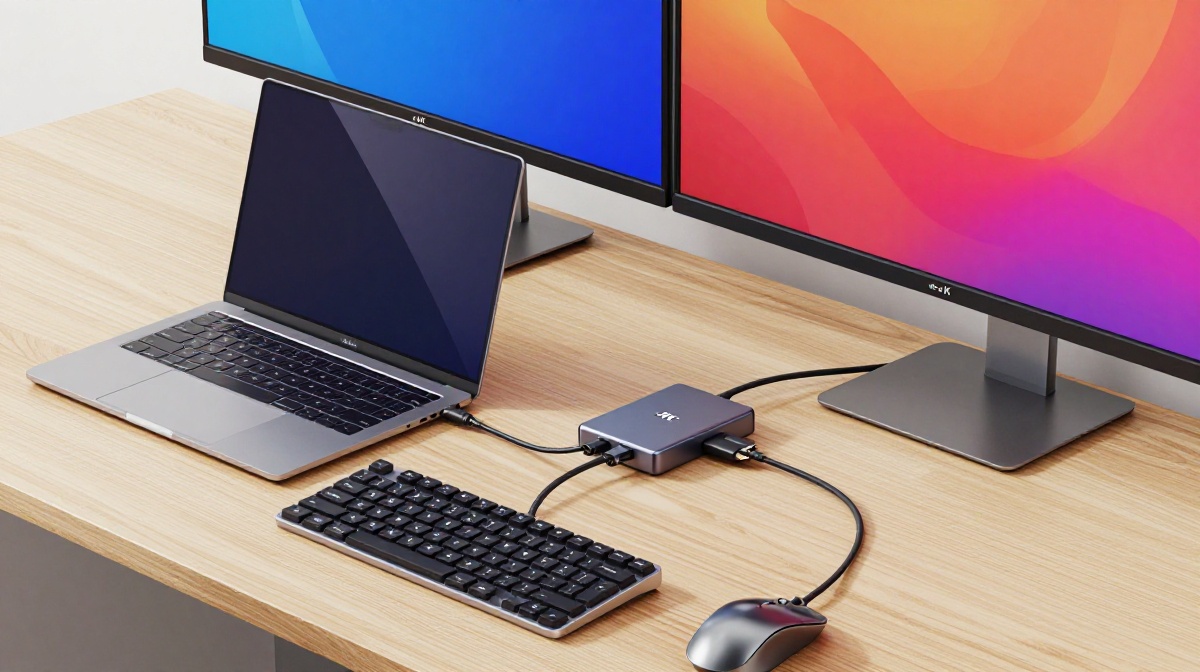
The Most Essential USB-C Hubs for Multi-Monitor Mobile Offices: The 2026 Professional Guide
In the modern professional landscape, the traditional office has been replaced by a flexible, “work-from-anywhere” philosophy that demands high-performance hardware. Modern laptops are incredibly powerful, yet their limited port selection often turns a clean desk into a cluttered mess of cables and adapters. To truly transform a portable laptop into a full-scale workstation, a USB-C docking station or hub is the single most important investment you can make. Whether you are driving dual 4K monitors, managing massive data transfers from external SSDs, or requiring a stable wired Ethernet connection for video calls, the right connectivity solution is the bridge to maximum productivity.
Hub vs. Docking Station: Choosing Your Mobile Foundation
Before selecting a device, it is critical to understand the distinction between a USB-C hub and a docking station. A USB-C hub is generally designed for portability, offering a compact way to add common ports like HDMI, USB-A, and SD card slots while fitting easily into a laptop bag. These are typically bus-powered by the laptop or use Power Delivery (PD) pass-through. Conversely, a docking station is built for permanent or semi-permanent desk setups, providing stronger power delivery, support for more monitors, and more stable networking options.
For a multi-monitor mobile office, the choice often depends on whether you prioritize extreme portability or raw workstation power. As we explore the top contenders for 2026, keep in mind that the best solution for you must balance display output, data speed, and charging capabilities.
A Note from TheGadgetNet
At www.thegadgetnet.com, we are dedicated to staying on the cutting edge of the tech world, providing you with deep-dive analysis and expert reviews that cut through the marketing noise. Our mission is to empower your digital lifestyle by finding the gadgets that actually work as hard as you do. In an era where the mobile office is the standard, we focus on the tools that ensure your connectivity is seamless, your displays are crisp, and your productivity is never bottlenecked by a single cable.
Top 5 Essential USB-C Hubs and Docks for 2026
1. The Professional Powerhouse: CalDigit TS4 Thunderbolt 4 Dock
For those who refuse to compromise, the CalDigit TS4 remains the gold standard for high-end professional workflows. This dock features a staggering 18 total ports, including three Thunderbolt 4 connections capable of 40 Gbps bandwidth. It is the ultimate choice for photographers, video editors, and developers who need to connect a vast array of high-speed peripherals simultaneously.
- Display Support: It natively supports dual 4K displays or even 6K/8K configurations depending on the host system.
- Power: It delivers up to 98W of Power Delivery, enough to keep even high-performance laptops like the 16-inch MacBook Pro charged under heavy load.
- Networking: It features a 2.5 GbE Ethernet port, which is 2.5 times faster than standard Gigabit connections.
- Verdict: While it carries a premium price point, it is widely considered the most comprehensive and stable dock available for permanent workstation replacements.
2. The Best Overall Hub: UGREEN Revodok Pro 11-in-1
If you need a versatile solution that bridges the gap between a portable hub and a desktop dock, the UGREEN Revodok Pro 11-in-1 is the top choice for 2026. It provides a robust selection of 11 ports, including dual display outputs via HDMI and DisplayPort.
- Performance: It supports dual 4K at 60 Hz, avoiding the common “30 Hz trap” where video appears choppy and mouse movement feels laggy.
- Data Speeds: Unlike many budget hubs limited to 5 Gbps, the Revodok Pro offers 10 Gbps USB-C and USB-A ports, making it ideal for moving large files from external SSDs.
- Charging: It supports 100W PD pass-through, allowing you to charge your laptop through the hub with a single cable.
- Verdict: This is the editor’s choice for MacBook Pro or Air users who want a dual-monitor setup without the massive footprint of a dedicated Thunderbolt dock.
3. The Dual-Monitor Specialist for Windows: Baseus 10-in-1 Docking Station
The Baseus 10-in-1 Dual Monitor Docking Station has gained significant acclaim for its clever design and exceptional Windows compatibility. It is one of the few hubs in its class that can feed a single 4K display at a 120 Hz refresh rate, which makes every movement on your screen look incredibly smooth.
- Design Features: It features a high-quality metal enclosure, a woven connector cable, and a dedicated system lock button that lets you quickly return to your lock screen with one click.
- Port Layout: It includes three USB-A ports, Gigabit Ethernet, and SD/microSD card slots, though the USB-A ports can be somewhat crowded for larger adapters.
- Display Limitations: While excellent for Windows (supporting dual 4K 60Hz), Mac users should note that macOS will mirror the desktop across two external monitors due to operating system limitations regarding MST.
- Verdict: This is a top-tier choice for Windows users seeking high refresh rates and a polished, professional design.
4. The Value Workhorse: Anker 556 USB-C Hub (8-in-1)
For everyday productivity, the Anker 556 offers the reliability the brand is known for in a compact, cool-running aluminum body. It is specifically recommended for MacBook Air users who typically only drive a single external monitor.
- Core Ports: It provides a native 4K 60 Hz HDMI output, Gigabit Ethernet, and SD card readers.
- Warranty: Anker offers a standout 18-month warranty, providing peace of mind for mobile professionals who put their gear through heavy travel use.
- Verdict: While it lacks a second display output, its thermal stability and plug-and-play reliability make it the best everyday hub for standard office tasks.
5. The Future-Proof Pick: Kensington SD5000T5 Thunderbolt 5 Dock
As we move further into 2026, the Kensington SD5000T5 represents the next generation of connectivity as one of the first Thunderbolt 5 docking stations. Thunderbolt 5 technology offers massive leaps in bandwidth, designed to handle the increasingly demanding resolutions of high-end professional monitors.
- Speed: It leverages the latest protocols to ensure that high-speed NVMe storage and multiple ultra-high-resolution displays can run at full capacity without bandwidth bottlenecks.
- Versatility: It serves as a comprehensive “all-in-one” tool for modern laptops, offering powerful port expansion through a single, high-bandwidth cable.
- Verdict: For tech enthusiasts and professionals who want to future-proof their setup against upcoming hardware releases, the SD5000T5 is the cutting-edge choice.
Technical Guide: What to Look for Before You Buy
Choosing a hub is not just about counting ports; it is about understanding the underlying technology that governs your monitors and peripherals. The best hub for you depends on three main factors: screen count, data speed requirements, and power needs.
1. The Dual Monitor Dilemma: MST vs. DisplayLink
How your laptop handles multiple monitors is often the biggest hurdle in a mobile office setup.
- Windows (MST): Most Windows laptops use DisplayPort MST (Multi-Stream Transport), which allows a single USB-C port to drive two or more independent displays.
- macOS Limitations: Standard Apple Silicon MacBooks (non-Pro/Max versions) natively support only one external display via USB-C or Thunderbolt. If you connect a “dual monitor” USB-C hub to these Macs, both screens will show the same mirrored image.
- The DisplayLink Workaround: To get two independent monitors on a standard MacBook, you must use a hub with DisplayLink technology, which uses software-based drivers to bypass native hardware limits.
2. The Power Delivery (PD) “Pass-Through Tax”
A hub with 100W PD pass-through does not actually deliver 100W to your laptop. These hubs have a dedicated USB-C input for your charger. Typically, the hub itself “consumes” about 15W to power its own internal circuits and connected USB devices, meaning a 100W input will result in roughly 85W of actual charging power for your laptop. Always ensure your wall charger has enough overhead to cover both the hub and the laptop’s requirements.
3. Avoiding the “30 Hz Trap”
When shopping for budget hubs, be wary of those advertising “4K HDMI” that are capped at 30 Hz. While 30 Hz is technically 4K, it results in a choppy visual experience that is uncomfortable for daily desktop use. Always prioritize hubs that support 4K at 60 Hz (like the Anker 556 or Ugreen Revodok Pro) to ensure smooth motion and reduced eye strain.
4. Data Transfer: 5 Gbps vs. 10 Gbps vs. 40 Gbps
Most budget hubs operate at USB 3.0 speeds of 5 Gbps, which is perfectly fine for mice, keyboards, and simple flash drives. However, if your mobile office involves moving 4K video files or large databases from an external SSD, you should look for 10 Gbps (USB 3.2 Gen 2) ports. Only Thunderbolt 4 and 5 docks hit the 40 Gbps+ range, which is essential for RAID enclosures and daisy-chaining multiple high-speed devices.
Specialty Solutions for Unique Office Needs
Sometimes a standard 10-in-1 hub isn’t the right fit for your specific mobile setup.
- For Desktop Connectivity: The Sabrent HB-B7C3 is a 10-port powered hub that features individual power switches for every port. This is incredibly useful for managing devices like webcams or microphones that you don’t want active at all times, or for resetting microcontrollers without unplugging them.
- For Extreme Portability: The Sabrent HB-U3CR is a slim, aluminum 4-port hub designed specifically to match the aesthetic of MacBooks. It includes a magnetic sticker that helps it stay stable on a table, preventing it from being pulled off by heavy cables.
- For USB-C Scarcity: If your computer has enough HDMI and SD slots but lacks the modern oval ports, the Mokin 5-in-1 USB-C to USB-C Hub turns one USB-C port into four 10 Gbps data ports. One of these ports even supports 4K 60 Hz video output, easing “USB-C port anxiety” for users with newer peripherals.
How to Set Up Your Multi-Monitor Mobile Office
To get the most out of your new hardware, follow these best practices for a stable workstation:
- Check Your Cable: A hub is only as fast as the cable connecting it to your laptop. Never use a “charge-only” cable for your hub; ensure you are using a 10 Gbps or Thunderbolt-rated cable to prevent display flickering or data bottlenecks.
- Use Wired Ethernet: While Wi-Fi has improved, a wired Gigabit or 2.5 GbE connection is far more stable for video calls and large downloads.
- Manage Thermals: High-performance hubs can get warm during heavy use. Metal enclosures (like those on UGREEN and Baseus models) act as heat sinks, helping to dissipate heat more effectively than plastic alternatives.
- Optimize Resolution: If you are having trouble driving two 4K monitors at 60 Hz, check if your laptop’s USB-C port supports DisplayPort 1.4. Older DisplayPort 1.2 ports may be limited to lower resolutions or refresh rates when driving dual screens.
Conclusion: The Single-Cable Future
A high-quality USB-C docking station or hub can completely transform your workspace, turning a laptop into a desktop replacement with a single connection. Whether you choose the professional-grade CalDigit TS4 for its massive port selection or the UGREEN Revodok Pro for its balance of price and performance, the right hub is the heart of the modern mobile office.
By investing in a device that supports 4K 60 Hz, provides high-speed data transfer, and offers reliable Power Delivery, you ensure that your mobile office is ready for the challenges of 2026 and beyond. Stop fighting with a mess of dongles and embrace the efficiency of a single-cable setup. Your productivity—and your desk—will thank you.

